Dead Pixel vs Stuck Pixel: How to Test Your Screen and Can You Fix It?
TL;DR
Dead pixels stay permanently dark across white and RGB backgrounds, while stuck pixels glow a single subpixel color over black. Inspect in fullscreen solid colors before filing an RMA.


The Tiny Dot That Ruined Your Day
You just unboxed a $500 4K monitor. You boot it up, admire the crisp wallpaper, and then you see it. A tiny, unmoving speck of dust. You wipe the screen. It doesn't move. You scratch it with your fingernail. It stays there.
Congratulations, you have joined the club of the Defective Pixels.
But before you pack it up for a warranty return (which might be denied, more on that later), you need to determine: Is it Dead or is it Stuck? Because one is a hardware failure, and the other can often be startled back to life.
Dead Pixel vs Stuck Pixel
These terms are often used interchangeably, but they are chemically different.
1. Stuck Pixel ( The Sleeping Beauty)
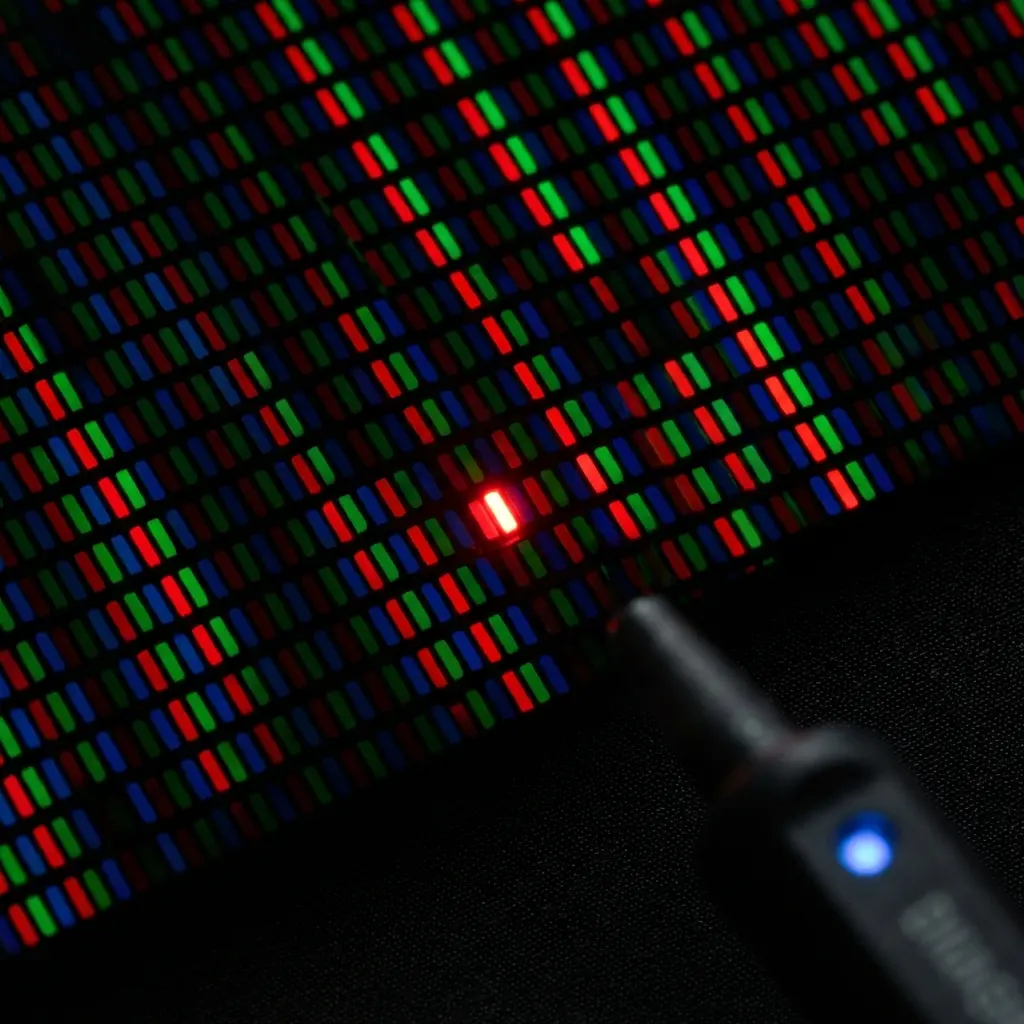
- Appearance: A bright, solid color—usually Red, Green, or Blue.
- Cause: The liquid crystal sub-pixel is jammed in the "Open" position, letting light pass through constantly.
- Prognosis: Fixable (~60% chance). Since it is receiving power, rapid color cycling or pressure can unjam it.
2. Dead Pixel (The Corpse)
- Appearance: A tiny black dot.
- Cause: The transistor powering that sub-pixel has failed completely. It receives no power and blocks all light (on IPS/TN panels). On OLEDs, stuck pixels might appear white/black differently due to self-emissive nature.
- Prognosis: Permanent. Unless it is just dust trapped under the glass (rare but possible), it is gone forever.
How to Test Your Screen Properly
Don't stick your face 1 inch from the monitor on your desktop wallpaper. You need pure solid colors to isolate the sub-pixels.
Use our DCPROSENS Monitor Test to cycle through Full Screen colors:
- White Screen: Reveals Dead Pixels (Black dots).
- Black Screen: Reveals Stuck Hot Pixels (Bright dots) and Backlight Bleeding.
- Red/Green/Blue Screens: Isolates sub-pixels to find faint defects that mix into white.
How to Fix a Stuck Pixel (The "Flashing" Method)
If you have a Red, Green, or Blue stuck pixel, do not lose hope. The "JScreenFix" method works by flashing colors rapidly (60Hz or 144Hz) around the affected area to over-stimulate the liquid crystal.
- Go to a flashing tool (like JScreenFix or our upcoming utility).
- Drag the flashing square over the stuck pixel.
- Leave it there for 10 to 20 minutes.
- If that fails, leave it for an hour. sometimes the heat and electrical activity jolt the crystal back into alignment.
Software Solutions Breakdown
Aside from web tools, there are dedicated programs:
- UDPixel (Windows): An old but gold classic. It generates a 1x1 pixel flashing point that you can drag anywhere. Less CPU intensive than browser tools.
- Dead Pixel Buddy: A simple pattern generator to cycle colors.
- Epilepsy Warning: These tools flash rapidly. Do not look directly at them if you are photosensitive.
The "Massage" Method (Use Caution!)
This is controversial but effective. It involves physically massaging the pixel.
WARNING: Do this at your own risk. Pressing too hard can crack the screen or create more dead pixels (pressure damage).
- Turn off the monitor.
- Find the stuck pixel location (mark it with post-it tape if needed).
- Get a microfiber cloth and a pencil with a soft eraser end (or just your finger in the cloth - ensure it's damp/soft).
- Apply gentle pressure directly on the pixel.
- Turn the monitor on while applying pressure.
- Release pressure. Sometimes this "sqeeze" allows the liquid crystal fluid to flow back into the chamber properly.
The Warranty Trap: ISO 13406-2 Detailed
Think you can return a monitor for 1 dead pixel? Think again. Most manufacturers (Dell, ASUS, Acer) follow the ISO 13406-2 Class II standard. This standard was written when LCDs were hard to make, but companies still cling to it to avoid returns.
Acceptable Defects per 1 Million Pixels (Class II):
- 2 Dead Pixels (Black)
- 2 Stuck Pixels (White)
- 5 Stuck Sub-pixels (Colors)
On a 1080p screen (2 million pixels), double those numbers. On 4K (8 million pixels), multiply by 8. They can legally deny a return even if you have 4 dead pixels.
Brand Specific Policies (2025/2026)
- Dell Premium Panel Exchange: Allows return for even 1 bright pixel (stuck), but allows up to 6 dark pixels (dead) depending on model.
- ASUS Zero Bright Dot: Similar to Dell, they guarantee no bright dots for certain ProArt/ROG models for 30 days.
- MSI: Generally requires 3+ bright dots or 5+ dark dots.
Advice: Always buy from retailers like Amazon with a "No Questions Asked" 30-day return policy. Do not rely on the manufacturer warranty for pixels.
Frequently Asked Questions (FAQ)
Does the "Freezer Method" work?
Some people claim putting a phone/screen in the freezer can unstuck a pixel. Do not do this. Condensation will destroy the electronics inside. It is a myth that kills hardware.
Can a stuck pixel fix itself?
Yes. Sometimes it disappears after a few days of normal use. Heat and voltage changes can naturally unjam the crystal.
Are dead pixels distinct from dust?
Yes. Dust moves if you tap the screen (unless it's under the glass). A dead pixel is a perfect square. Dust is usually irregular.
Conclusion
A dead pixel is an eyesore, but a stuck pixel is a challenge. Before engaging in an RMA war with customer support, try flashing it for an hour. You might just save your screen.
Frequently Asked Questions
What is the visual difference between a dead pixel and a stuck pixel?
A dead pixel appears pure black on white, red, green, and blue slides. A stuck pixel stays lit in one color against a pure black background.
How many dead pixels require an RMA warranty replacement?
Check your panel brand's ISO pixel policy — premium OLED and esports lines often guarantee zero bright subpixel tolerance within return windows.
Can I test dead pixels without installing an app?
Yes, launch the DCPROSENS Dead Pixel & Live Hz Checker in fullscreen and cycle Black, White, Red, Green, and Blue.
Dalto Cardoso (Dalto Outlier)
✓ Verified Founder, DCPROSENSSoftware developer and founder of DCPROSENS (DCOUTLIER). Dalto engineers precision sensitivity calculators, yaw telemetry databases, and hardware calibration guides for competitive FPS players.
Related Guides & Articles

Disclosure: some links on this page are affiliate links. As an Amazon Associate, DCPROSENS earns from qualifying purchases at no extra cost to you.