DPI Calculator: How to Find Your Mouse's Real DPI
TL;DR
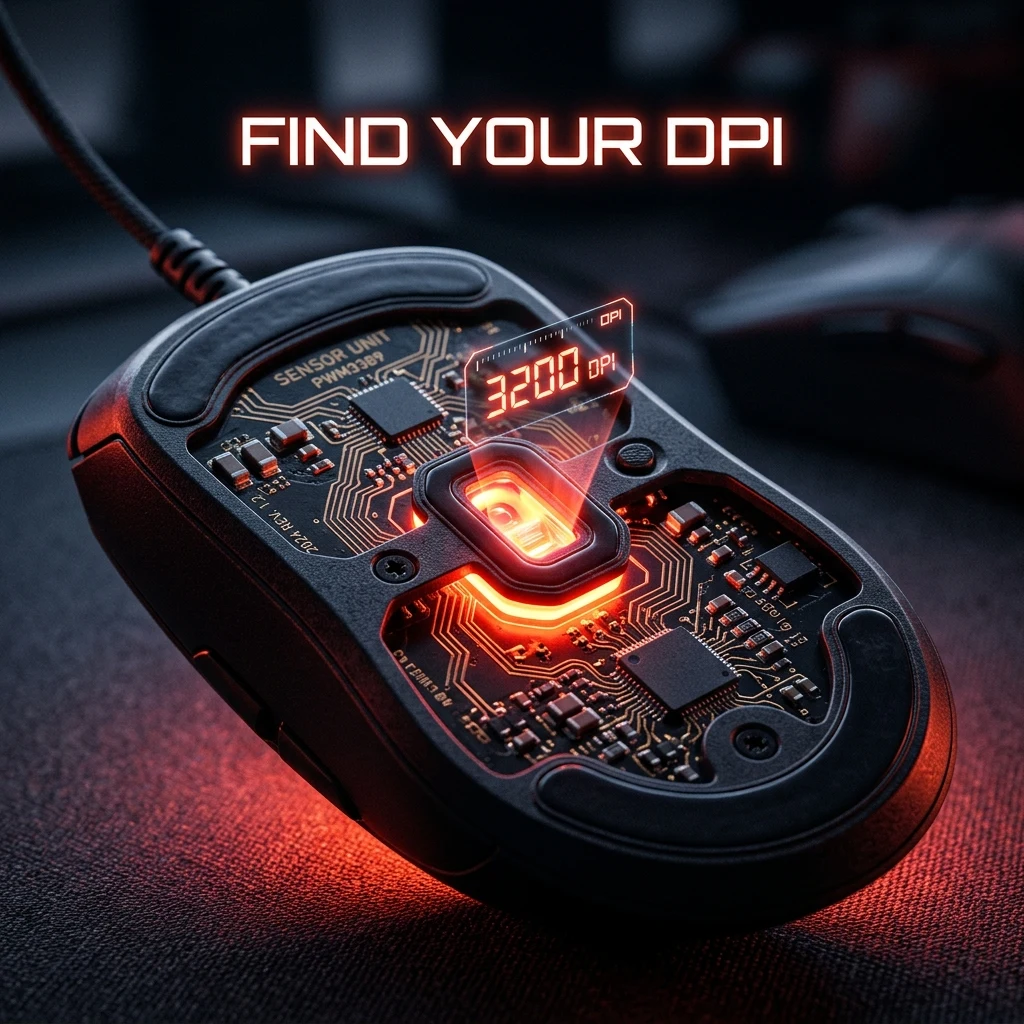
DPI (dots per inch) is how many position updates your mouse sensor reports per inch of physical movement, but the number a mouse's software displays isn't guaranteed to match what the sensor actually delivers, due to manufacturing tolerance and firmware rounding. A DPI analyzer measures the real value directly from physical movement instead of trusting the settings panel.
Why Your Mouse's "Advertised DPI" Isn't Always Accurate
DPI (dots per inch, sometimes labeled CPI — counts per inch, which is technically more precise for gaming mice) defines how many discrete position updates your sensor sends to the PC for every inch of physical travel across your mousepad. Set your mouse to 800 DPI, and the sensor is supposed to report 800 position updates per inch; set it to 1600, and it reports 1600 for that same inch.
In practice, the number your mouse's software panel shows is a target the sensor firmware aims for, not a guaranteed measured output. Manufacturing tolerance on the sensor chip itself, firmware-level rounding to the nearest supported step, and occasionally driver-side interpolation can all introduce a small real-world gap between the DPI you set and what the hardware actually delivers. For most casual use this gap is negligible. For precise sensitivity conversion between games — which assumes your DPI input is exact — even a small mismatch compounds into a noticeably wrong cm/360 on the other end.
This gap tends to be more pronounced at the extremes of a sensor's supported range than in the middle. A sensor rated for up to 30,000 DPI is engineered and validated most rigorously around the DPI values it expects competitive players to actually use — typically 400 to 1600 — with less scrutiny paid to accuracy at its theoretical maximum, since almost nobody games at 20,000+ DPI in practice. If you're running an unusually high or unusually low DPI value, that's exactly when it's worth double-checking the real number rather than assuming the software panel is exact.
How to Measure Real DPI
The most reliable way to check your actual DPI is to measure it directly from physical movement rather than trusting the number in your mouse's configuration software. A basic manual method: mark a fixed starting point on your mousepad, move your mouse in a straight line exactly one ruler-measured inch (or a known number of inches) with raw input and any acceleration settings disabled, and compare the on-screen cursor travel distance against your monitor's known pixel density at your set DPI. Repeat several times and average the results, since a single pass is prone to measurement error from hand tremor or an imprecise stopping point.
That manual process is slow and error-prone by hand — it's far faster and more accurate to use a purpose-built tool. Our DPI analyzer measures your mouse's real, tested DPI directly, so you're working from an accurate number before you convert sensitivity to a new game or compare your setup against a pro's published settings.
Before measuring, rule out anything that could distort the result independently of the sensor itself: confirm Windows' Enhanced Pointer Precision is off, that your mouse software isn't applying its own acceleration curve, and that any in-game acceleration setting (where applicable) is disabled. Any of these can make a perfectly accurate sensor appear to be tracking incorrectly, since they change how a given physical movement translates to reported output independent of the raw DPI value.
Using a DPI Analyzer Tool
A DPI analyzer removes the guesswork by tracking actual sensor output against known physical distance, rather than asking you to trust a manufacturer's firmware. This matters most in two situations: first, when you're about to convert your sensitivity to a new game using the sensitivity converter, since that math is only as accurate as the DPI value you feed into it; second, when you're troubleshooting aim that "feels off" after a hardware change — a mouse that's tracking a few percent away from its advertised DPI is a common, overlooked cause. Once you have a verified real DPI, feed it into our DPI calculator alongside your target cm/360 to get the exact in-game sensitivity that reproduces your intended feel.
Does Higher DPI Reduce Input Lag?
There's a real but frequently overstated effect here. A higher DPI means the sensor reports position updates at finer physical granularity, which can very slightly reduce the perceptible "steppiness" of extremely slow, deliberate movements. The actual latency difference this produces at the sensor level is a fraction of a millisecond on any modern gaming mouse sensor — nowhere near the multi-millisecond figures sometimes claimed in marketing copy or outdated guides. Don't choose a higher DPI expecting a meaningful competitive input-lag advantage; choose it because it makes your target cm/360 land on an in-game sensitivity number that's easy to set precisely, which is a real and useful benefit on its own.
It's also worth knowing that pushing DPI very high (roughly above 3200–6400, depending on the specific sensor) can introduce firmware-level smoothing on some sensors, where rapid position changes get averaged to reduce reported noise — the opposite of the extra precision people expect from "more DPI." If aim feels slightly delayed or floaty at an unusually high DPI compared to a lower setting at the same converted cm/360, this is worth ruling out before assuming the sensitivity math is wrong.
Common DPI Settings by Mouse Brand
Most gaming mouse brands ship with software-default DPI presets in similar territory, even though the underlying sensors differ. Common out-of-the-box or frequently-used steps across Logitech, Razer, and SteelSeries software all include 400, 800, 1600, and 3200 as standard selectable presets — round numbers chosen for easy mental math and easy comparison against other players' settings, not because they're technically superior to an arbitrary value like 850.
Competitive players overwhelmingly stay in the 400–1600 range regardless of brand, because that's where fine control over in-game sensitivity sliders is easiest — going higher just means the sensitivity slider has to compensate with smaller, harder-to-fine-tune values for the same cm/360. See real examples across different sensor and brand combinations in our mouse database. Once you've confirmed your real DPI, multiply it by your in-game sensitivity to get your eDPI — the number that actually describes your effective aim speed, and the one worth comparing against published pro settings instead of DPI alone.
What Happens If You Skip Verifying Your DPI
Most players never check their real DPI, and for casual play, that's genuinely fine — a small tracking discrepancy rarely matters if you're not converting your sensitivity anywhere or comparing it precisely against another setup. It starts to matter in three specific situations: converting sensitivity to a new game with a converter tool, where the DPI you input is treated as ground truth; replicating a setting from a new mouse purchase, where you want your cm/360 to carry over exactly; and diagnosing an "off" feeling after any hardware change, where an unverified DPI assumption can send you chasing the wrong variable entirely. Outside of those cases, spending time chasing sub-1% DPI accuracy isn't a good use of practice time.
If you do find a real gap between advertised and measured DPI on your specific mouse, the fix isn't necessarily to demand a refund or assume the product is defective — sensor tolerance within a few percent is normal across the industry and rarely audible in actual play. The more useful response is simply to use the measured value, not the advertised one, anywhere your setup depends on DPI being exact, particularly in the DPI calculator and sensitivity converter.
Frequently Asked Questions
Frequently Asked Questions
How do I check my mouse DPI without software?
Mark a known physical distance on your mousepad, move the mouse exactly that distance in a straight line with acceleration and pointer enhancement disabled, and compare the resulting on-screen cursor travel against your monitor's pixel density. This manual method works but is error-prone; a dedicated DPI analyzer tool measures it far more precisely and quickly.
Does higher DPI mean better aim?
No — modern optical sensors track accurately across the entire 400–1600+ range competitive players use, so higher DPI isn't inherently more precise. What higher DPI actually changes is how finely your in-game sensitivity slider lets you dial in a target cm/360, and at very high DPI some sensors introduce smoothing that can make aim feel slightly less direct, not more.
Equipamentos de Elite Recomendados
Mouses ultra-leves topo de linha recomendados pelo Treinador Dalto para máxima precisão de sensor e consistência física no seu mousepad:
Logitech G Pro X Superlight 2
O mouse mais vencedor do cenário competitivo. Shape icônico, sensor HERO 2 e switches ópticos-mecânicos híbridos.
Razer Viper V3 Pro
Rastreador preciso com polling rate sem fio nativo de 8.000 Hz e formato simétrico ergonômico moderno.
Razer DeathAdder V3 Pro
Excelente para pegadas palm ou claw que querem apoio anatômico. Sensor Focus Pro 30K de última geração.
Lamzu Atlantis OG V2 / Thorn
Mouse boutique com peso irrisório e base vazada. Pegada traseira perfeita para controle agressivo de claw grip.
🎯 Lock In Perfect 1:1 Aim & Pro Consistency
Tired of daily aim inconsistency? Calibrate your physical cm/360, scope matching, and sensor latency. Get the complete Precision Aim System (4-Part Technical Manifestos) today for only $9.00 USD!
Unlock Elite Precision ($9) ⚡Dalto Outlier
Creator, DCPROSENSDalto built DCPROSENS to help competitive FPS players convert sensitivity, calibrate DPI, and keep their aim consistent across games.