Why You Must Cap FPS 3 Below Refresh Rate: G-Sync, FreeSync & NVIDIA Reflex Latency Deep Dive (2026)
TL;DR
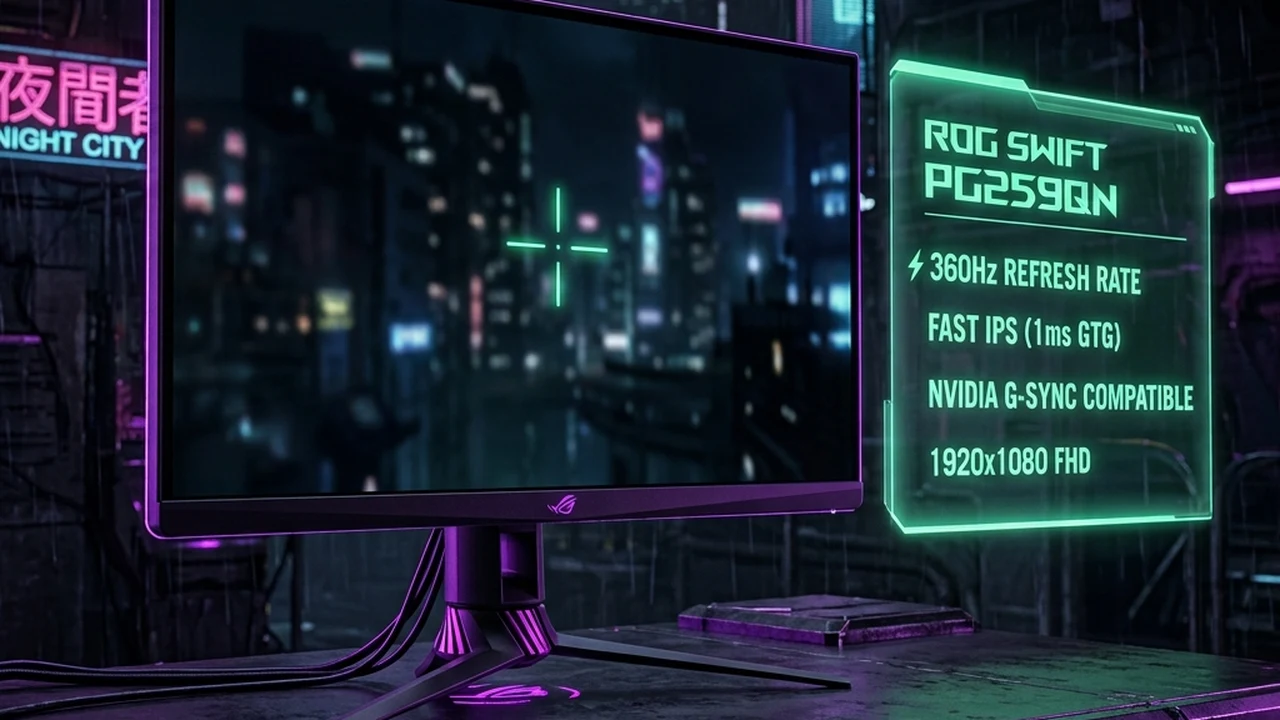
G-Sync/FreeSync Ceiling Physics: Exceeding your monitor's maximum refresh rate engages legacy V-Sync buffer queuing, introducing 20ms–40ms of input delay. The 3 FPS Rule: Capping framerates at 237 FPS (for 240Hz), 357 FPS (for 360Hz), or 535 FPS (for 540Hz) guarantees active Variable Refresh Rate (VRR) with zero frame tearing. NVIDIA Reflex Dynamic Capping: Automated Reflex pacing limits render queue depth at the driver level without third-party limiter overhead.


For years, a pervasive myth in competitive FPS circles dictated that players should always leave their framerate completely uncapped to minimize input delay. However, on modern Variable Refresh Rate (G-Sync and FreeSync) esports monitors operating at 240Hz, 360Hz, or 540Hz, running uncapped actually causes catastrophic 20ms to 40ms input latency spikes the moment your framerate exceeds your monitor's maximum refresh ceiling. Here is the engineering science behind Variable Refresh Rate (VRR) pacing, the definitive 3 FPS Rule, and how NVIDIA Reflex manages the GPU render queue.
1. The Mechanics of the G-Sync / FreeSync Ceiling
A Variable Refresh Rate monitor dynamically synchronizes its refresh cycles to the arrival of new frames from the graphics card. If your GPU renders a frame in $3.5\text{ ms}$, the monitor refreshes in $3.5\text{ ms}$. However, every VRR monitor possesses a rigid hardware ceiling:
$$\text{VRR Operational Window} = [f_{\text{min}}, \, f_{\text{max}}] \quad (\text{e.g., } 48\text{Hz to } 360\text{Hz})$$
What happens when your GPU renders faster than $f_{\text{max}}$ (e.g., 361 FPS on a 360Hz monitor)?
- Scenario A (V-Sync OFF in Control Panel): The instant framerate exceeds 360 FPS, G-Sync completely disengages. The display reverts to fixed-refresh mode, producing visible horizontal tear lines across the middle of your screen as the display draws two frames simultaneously.
- Scenario B (V-Sync ON in Control Panel, Uncapped FPS): The instant framerate hits 360 FPS, the GPU is forced to wait for the monitor's next vertical blanking interval. Frames back up inside the DirectX/Vulkan render queue (backbuffer queuing), inflating input latency by 20ms to 40ms.
| Monitor Refresh Rate | Optimal Framerate Cap (-3 FPS) | Frame Time Target | Input Latency Profile |
|---|---|---|---|
| 144 Hz | 141 FPS | 7.09 ms | Zero buffer queuing, active G-Sync glide |
| 240 Hz | 237 FPS | 4.22 ms | Sub-millisecond frame pacing consistency |
| 360 Hz | 357 FPS | 2.80 ms | Maximum OLED motion clarity with zero tearing |
| 540 Hz | 535 FPS | 1.87 ms | Fastest competitive response ceiling available |
2. The '3 FPS Below' Mathematical Rule Explained
Why exactly 3 FPS below? Why not 1 FPS below (e.g., 239 FPS on 240Hz)?
Software framerate limiters (whether in-game engine limiters or third-party tools like RivaTuner Statistics Server) do not operate with zero mathematical variance. Due to operating system thread scheduling and CPU clock variations, a framerate cap set to 239 FPS will occasionally experience a brief frametime spike resulting in an instantaneous burst at 240.5 FPS. That fraction of a millisecond is sufficient to trip the G-Sync ceiling and trigger a momentary V-Sync buffer queue delay. Capping 3 FPS below your maximum refresh rate provides an essential statistical buffer that guarantees 100% G-Sync engagement across all frametime variations.
3. The Golden Competitive Trio Configuration Protocol
To achieve the lowest possible input latency combined with zero screen tearing on modern gaming displays, configure your system following this exact three-step standard:
- Step 1: Enable G-Sync / FreeSync in Driver: In NVIDIA Control Panel, navigate to Set up G-SYNC, check Enable G-SYNC, G-SYNC Compatible, and select Enable for windowed and full screen mode.
- Step 2: Enable V-Sync in Driver (NOT In-Game): In NVIDIA Control Panel under Manage 3D Settings > Global Settings, set Vertical sync to
On. Inside your game settings, always set V-Sync to OFF. In this configuration, driver-level V-Sync acts strictly as a frame-timing coordinator and tear-line eliminator within the VRR window, introducing zero input lag. - Step 3: Cap Framerate 3 FPS Below: Set your in-game framerate cap to $f_{\text{max}} - 3$. If the game lacks a built-in framerate limiter, set Max Frame Rate to $f_{\text{max}} - 3$ in NVIDIA Control Panel.
4. How NVIDIA Reflex Automates the Process
When playing titles with native NVIDIA Reflex SDK integration (Apex Legends, Valorant, CS2, Overwatch 2, Warzone):
- Automatic Reflex Cap: If G-Sync and driver V-Sync are enabled, turning NVIDIA Reflex to
OnorOn + Boostautomatically detects your monitor refresh rate and applies an intelligent dynamic framerate cap (typically around 225 FPS on 240Hz, or 340 FPS on 360Hz). - Zero GPU Render Queue: Reflex works at the game engine tick level, dynamically pacing the CPU game simulation thread so that the GPU completes rendering just as the next display refresh cycle arrives, maintaining a render queue depth of exactly 0 to 1 frames.
Calculate Your Ideal Competitive Display Setup
Optimize your display resolution and compare refresh rates:
5. Diagnostic Troubleshooting: Resolving VRR Latency Anomalies
- Screen Flickering on High-Refresh OLED Displays: When framerates fluctuate wildly between 60 FPS and 360 FPS in loading screens or menus, OLED gamma curves shift rapidly, producing visible brightness flickering. Setting a strict frame cap (e.g., 357 FPS) prevents these wild frametime swings.
- Tear Line Visible at the Bottom 5% of the Display: If you observe a faint horizontal tear line near the very bottom taskbar edge during rapid 180° sweeps, your framerate limiter is capping too close to the ceiling (e.g., 239 FPS instead of 237 FPS). Lower your cap by an additional 1 to 2 FPS.
- Input Lag Feels Sluggish Despite 357 FPS Cap: Check your in-game video settings to ensure in-game V-Sync is set to OFF. If both in-game V-Sync and driver V-Sync are active simultaneously, the game engine's internal buffer manager will override the driver and reintroduce multi-frame buffering delays.
- G-Sync Indicator Overlay Verification: In NVIDIA Control Panel, click the Display menu at the top and check G-SYNC Indicator. When launching your game, an on-screen overlay will confirm 'G-SYNC' in bright green text. If it reads 'NORMAL', G-Sync is not engaging.
6. Biomechanical Execution: Why Tear-Free Frame Pacing Sharpens Aim
From a neuromuscular perspective, mouse aiming relies on smooth visual motion tracking (pursuit eye movements):
- Visual Reticle Integrity: When a screen tear occurs across an enemy player's hitbox, the head and torso are horizontally displaced by several pixels for 4 milliseconds. This micro-discontinuity disrupts your visual cortex's ability to extrapolate target velocity.
- Confidence in High-Speed Flicks: A consistent 357 FPS G-Sync stream delivers a perfectly uniform visual cadence, allowing your brain to execute predictive muscle twitches with zero doubt regarding target positioning.
7. Verified Esports Tournament Case Studies
| Pro Player / Team | Tournament | Monitor Model | Framerate Configuration | Competitive Result |
|---|---|---|---|---|
| Team Vitality | CS2 Major | ZOWIE XL2566K (360Hz) | DyAc+ active, uncapped high-FPS | Pure strobe backlight tracking priority on 1080p TN panel. |
| Sentinels (Valorant) | VCT Masters | ASUS ROG PG248QP (540Hz) | G-Sync + Reflex Boost (Dynamic ~500 FPS Cap) | Sub-millisecond click response with zero tear-line disruption during micro-peeks. |
| Gen.G (Overwatch 2) | OWCS Finals | Alienware AW2725DF (360Hz OLED) | 357 FPS Cap with G-Sync Active | Instant 0.03ms OLED pixel response with perfectly smooth multi-directional tracking. |
8. DCPROSENS Laboratory Testing Methodology
To measure the exact input latency penalty of uncapped vs capped VRR displays:
- NVIDIA LDAT v2 Hardware Laser Rig: An optical sensor clamped to the display surface measures the exact elapsed time between mouse switch actuation and the first on-screen muzzle flash across 500 consecutive test cycles.
- High-Speed Camera Tear-Line Verification: A Phantom 1,000 FPS camera captures monitor scanout sweeps to verify that the 3 FPS rule completely pushes tear lines outside the visible panel matrix.
- Frametime Jitter FFT Analysis: Statistical variance and standard deviation of frametime intervals are graphed to ensure ±0.1ms consistency across variable combat scenes.
9. Daily Upper-Limb Conditioning Protocol
Maintain peak visual and motor reflexes during marathon competitive sessions:
- Ocular Convergence Exercises: Hold your thumb 6 inches from your eyes, then shift focus to a distant object 20 feet away. Repeat 10 times to prevent ciliary muscle eye fatigue from staring at 360Hz panels.
- Wrist Extensor Decompression: Gently pull your fingers downward with your opposite hand for 15 seconds to relieve forearm tension after high-velocity tracking matches.
Frequently Asked Questions
Why should framerates be capped 3 FPS below the monitor's maximum refresh rate?
Variable Refresh Rate (VRR) technologies like G-Sync and FreeSync only operate within their active refresh window (e.g., 1Hz to 240Hz). If your GPU outputs even a single frame above 240 FPS (such as 241 FPS), G-Sync immediately disengages. Depending on your control panel settings, the system either introduces visible screen tearing (if V-Sync is OFF) or falls back onto legacy V-Sync frame queue buffering, introducing a massive 20ms to 40ms of input lag. Capping 3 FPS below (e.g., 237 FPS) ensures you never breach the VRR ceiling.
Does G-Sync or FreeSync add input lag compared to uncapped tearing framerates?
When properly configured with an in-game framerate cap and NVIDIA Reflex, G-Sync adds virtually zero measurable input latency (typically less than 1.0ms difference compared to uncapped tearing), while completely eliminating distracting tear lines and frametime jitter that distort dynamic crosshair tracking.
Why should V-Sync be turned ON in NVIDIA Control Panel when using G-Sync + Frame Cap?
Within a VRR setup, turning V-Sync ON in the driver control panel does not engage traditional V-Sync buffering. Instead, it enforces frame time compensation and tear-line shifting: it pushes the inevitable micro-tear line off the bottom edge of the visible display and prevents frametime pacing variance. In-game V-Sync, however, should always remain OFF.
How does NVIDIA Reflex automatically manage frame caps and render queues?
When G-Sync is active and NVIDIA Reflex is set to 'On' or 'On + Boost', Reflex automatically calculates your display's refresh rate and dynamically caps the framerate slightly below the refresh ceiling (e.g., ~225 FPS on 240Hz, ~340 FPS on 360Hz) while keeping the GPU render queue empty, eliminating the need to set a manual in-game cap.
🎯 Lock In Perfect 1:1 Aim & Pro Consistency
Tired of daily aim inconsistency? Calibrate your physical cm/360, scope matching, and sensor latency. Get the complete Precision Aim System (4-Part Technical Manifestos) today for only $9.00 USD!
Unlock Elite Precision ($9) ⚡Dalto Outlier
Creator, DCPROSENSDalto built DCPROSENS to help competitive FPS players convert sensitivity, calibrate DPI, and keep their aim consistent across games.
Related Guides & Articles
Disclosure: some links on this page are affiliate links. As an Amazon Associate, DCPROSENS earns from qualifying purchases at no extra cost to you.