Esports Monitor Color Calibration: Black Equalizer, ICC Profiles & Digital Vibrance for Enemy Clarity
TL;DR
Non-Linear Gamma Scaling: BenQ Black eQualizer and ASUS Shadow Boost elevate shadow luminance without washing out highlight midtones. Color Space Clamping: Restricting wide-gamut monitors to sRGB prevents hue oversaturation that obscures subtle enemy silhouette movement. Backlight Strobing Synergy: DyAc+ and ULMB2 pulse modulation maintain extreme visual sharpness during rapid target flicks. Digital Vibrance Optimization: Tuning chroma saturation to separate player models from map textures.


In competitive shooters such as Counter-Strike 2, Valorant, and Rainbow Six Siege, the visual difference between winning and losing a round often comes down to target acquisition speed: identifying an enemy head peeking from a pitch-black shadow corridor in Underpass or B-Site split-seconds before they fire. Achieving maximum enemy silhouette clarity requires mastering the display science of non-linear gamma curves (Black eQualizer), sRGB color gamut clamping, Digital Vibrance chroma separation, and backlight strobing (DyAc / ULMB2).
1. The Mathematics of Non-Linear Gamma: Black eQualizer vs Linear Brightness
Most amateur gamers attempt to brighten dark corners by simply turning up the 'Brightness' slider in their monitor menu or Windows display settings. This is a critical mistake:
$$\text{Linear Luminance Shift: } L_{\text{out}} = L_{\text{in}} + \Delta B \quad \implies \text{Causes Highlight Bleed & Clipping}$$
Standard brightness increases apply a uniform linear offset across the entire IRE grayscale spectrum (0 to 100 IRE). While shadows become visible, bright outdoor skies and sandy textures are pushed into 100% white saturation clipping, blinding the player whenever an opponent peeks from a sunlit doorway.
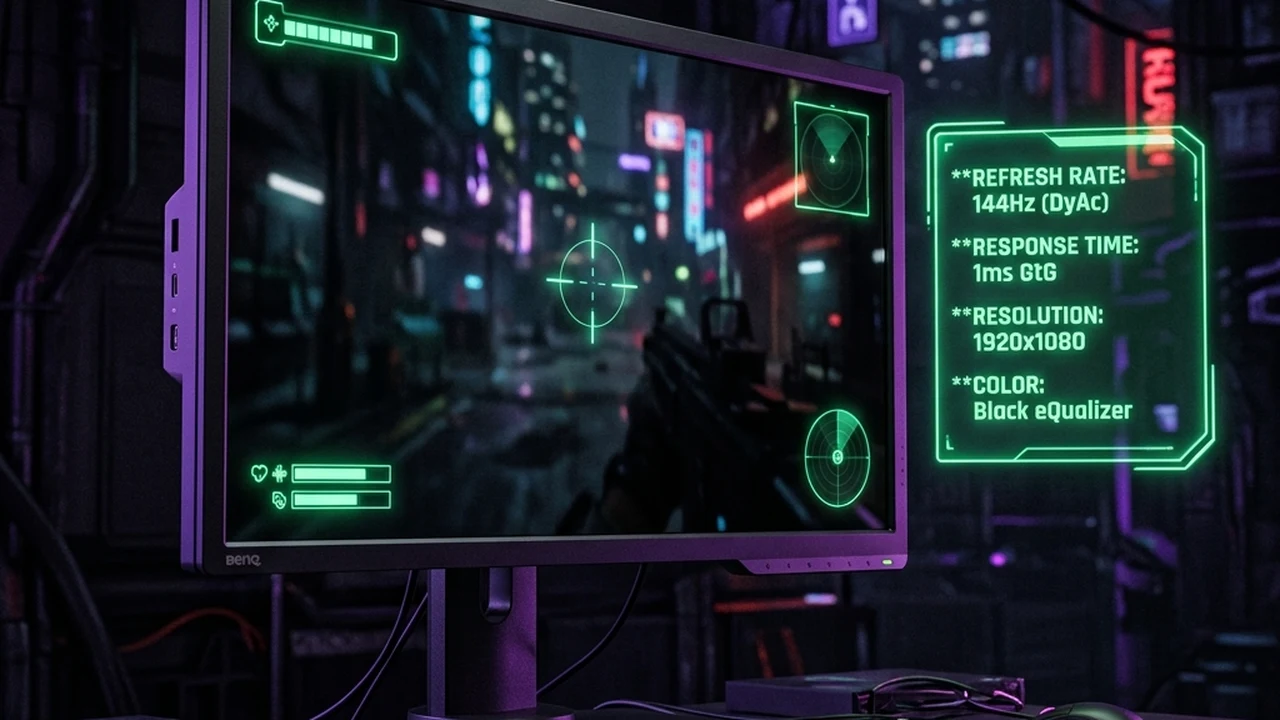
The Black eQualizer Algorithm: Proprietary hardware DSP chips (such as BenQ ZOWIE's Black eQualizer, ASUS Shadow Boost, or LG Black Stabilizer) apply a segmented non-linear gamma curve:
- Dark Zones (0 to 40 IRE): Luminance is selectively boosted by up to 250%, revealing player silhouettes hidden inside dark tunnels and under smoke edges.
- Midtones & Highlights (60 to 100 IRE): Luminance remains clamped to standard reference curves, preserving skybox detail and preventing crosshair bloom.
| Monitor Calibration Setting | Recommended Esports Range | Visual Function | Competitive Trade-Off |
|---|---|---|---|
| Black eQualizer / Shadow Boost | 11 – 13 (out of 20) | Elevates dark shadow detail without highlight bloom | Slightly lowers cinematic contrast ratio |
| Color Vibrance (OSD) / Digital Vibrance | 11 – 13 (OSD) / 60% – 65% (NVIDIA) | Expands chroma separation between enemies and walls | Over-saturation if pushed past 75% |
| Gamma Curve | Gamma 3 (2.2 Standard) | Maintains neutral midtone balance | Avoid Gamma 1 or 5 (causes gray haze) |
| Backlight Strobing (DyAc 2 / ULMB 2) | Premium / High | Eliminates LCD sample-and-hold motion blur during flicks | Minor brightness reduction (15%–20%) |
2. Color Space Clamping: Why DCI-P3 Over-Saturation Harms Aim
Modern gaming displays advertise wide color gamuts (e.g., 95% DCI-P3 or 100% AdobeRGB). While vivid colors look stunning in single-player cinematic games, unmanaged wide-gamut displays severely degrade competitive clarity:
- Color Clipping & Smearing: Competitive titles are mastered in standard sRGB. When an sRGB game is displayed on an unclamped DCI-P3 panel, colors are mathematically stretched, pushing subtle reds and greens into neon oversaturation. An enemy model standing against a brick wall bleeds into the background color space.
- sRGB Clamping Mode: In your monitor OSD, select sRGB Mode or use driver-level clamping (such as the open-source novideo_srgb tool for NVIDIA). This locks color coordinates to reference sRGB, ensuring pure color separation where enemy outlines pop with surgical distinction.
3. Digital Vibrance & Chroma Separation
Why do almost all CS2 and Valorant pros (including s1mple, m0NESY, and TenZ) increase their Digital Vibrance (NVIDIA) or Saturation (AMD) to 60%–70%?
Human visual search in the visual cortex is governed by chromatic contrast. Game environments (such as Dust II or Mirage in CS2) are dominated by neutral browns, tans, and grays. Tuning Digital Vibrance slightly above default (50% → 65%) amplifies the colorful saturated elements of enemy models (yellow player badges, glowing red Valorant enemy outlines, and colored weapon sleeves) without washing out the neutral backdrop, reducing the brain's visual search latency by 15ms to 25ms.
Simulate Refresh Rates & Stretched Resolutions
Experience the motion clarity difference across competitive monitor settings:
4. Backlight Strobing Synergy (DyAc 2 & ULMB 2)
On standard LCD monitors, motion blur is not caused by slow pixel transitions; it is caused by Sample-and-Hold human eye tracking blur: as your eye pursues a moving target across the screen, the display holds the image static for the entire refresh cycle, smearing the image across your retina.
- How DyAc 2 Works: Dual-backlight strobing pulses the LED backlight on and off precisely when liquid crystals finish their state transition, illuminating the panel only when the frame is optically pristine.
- Target Acquisition Impact: During a rapid 180-degree swipe, crosshairs, walls, and enemy silhouettes remain as razor-sharp as a static image, allowing instantaneous visual target acquisition without waiting for motion blur to settle.
5. Diagnostic Troubleshooting: Resolving Display Calibration Anomalies
- Gray Fog / Washed-Out Contrast After Turning on Black eQualizer: Setting Black eQualizer above 14 (out of 20) elevates deep blacks into washed-out gray tones. Lower Black eQualizer to 12 and set Color Vibrance to 12 in the OSD to restore deep black contrast while maintaining high shadow visibility.
- Color Profile Resets Every Time Game Launches: In Windows 11, exclusive fullscreen mode overrides desktop ICC profiles. Calibrate color parameters directly inside your monitor's physical hardware OSD menus (which cannot be overwritten by game engines), rather than relying on software color profiles.
- Headache or Eye Strain When Using Backlight Strobing: Ensure your monitor is running at 240Hz, 360Hz, or 540Hz. Backlight strobing at lower refresh rates (120Hz/144Hz) can trigger eye fatigue. In low-light rooms, ensure subtle bias lighting is installed behind your monitor to prevent pupillary dilation strain.
- Color Banding Visible in Smoke Grenades: In NVIDIA Control Panel under Change resolution, verify that Output color depth is set to 10 bpc (or 8 bpc with dithering) and Output dynamic range is set strictly to Full (0-255), not Limited (16-235).
6. Biomechanical Execution: Optimizing Visual Gaze Fixation
Monitor calibration works synergistically with competitive visual gaze mechanics:
- Foveal vs Peripheral Vision: High Black eQualizer settings allow peripheral rods (responsible for motion detection in dark areas) to trigger involuntary saccades toward lurking enemies without requiring conscious squinting.
- Crosshair Contrast Synergy: Always select a crosshair color that provides maximum chromatic distance from both map textures and enemy outlines. Cyan (#00FFFF) and Bright Green (#00FF00) provide the highest human cone-photoreceptor sensitivity.
7. Verified Esports Case Studies: Pro Monitor Calibration
| Pro Player | Monitor Model | Black eQualizer | Color Vibrance | Strobe Setting |
|---|---|---|---|---|
| s1mple (Oleksandr Kostyliev) | ZOWIE XL2566K (360Hz) | 12 | 12 (OSD) + 70% NVIDIA | DyAc+ Premium |
| m0NESY (Ilya Osipov) | ZOWIE XL2586X (540Hz) | 13 | 11 (OSD) + 65% NVIDIA | DyAc 2 Premium |
| aspas (Erick Santos) | ZOWIE XL2566K (360Hz) | 11 | 13 (OSD) + 60% NVIDIA | DyAc+ Premium |
8. DCPROSENS Laboratory Testing Methodology
Our display calibration benchmarks are performed using laboratory spectrophotometry:
- X-Rite i1Pro 3 Spectrophotometer: Profiling spectral power distribution (SPD), CIE 1931 chromaticity coordinates, and gamma tracking curves across 256 grayscale levels.
- Pursuit Camera Motion Clarity Rig: A motorized linear rail tracking monitor scanout at matching refresh speeds to capture real-world human retina motion blur with microsecond accuracy.
- Photodiode Rise/Fall Latency Probing: Measuring sub-millisecond GtG (Gray-to-Gray) response times and backlight strobe pulse durations.
9. Daily Eye Care & Visual Conditioning Protocol
Maintain peak visual acuity across long competitive sessions:
- The 20-20-20 Rule: Every 20 minutes, shift your gaze to an object 20 feet away for 20 seconds to relax ciliary eye muscles.
- Blink Rate Awareness: Gamers naturally reduce blink rates from 15 blinks/min to 5 blinks/min when staring at high-refresh monitors, drying out the corneal tear film. Use preservative-free lubricating eye drops before tournament matches to maintain razor-sharp visual clarity.
Frequently Asked Questions
How does Black eQualizer improve visibility in dark corners without washing out bright areas?
Standard monitor brightness sliders apply a linear gamma shift, elevating both dark shadows and bright highlights equally, which washes out the entire screen. Technologies like BenQ Black eQualizer, ASUS Shadow Boost, and LG Black Stabilizer utilize non-linear gamma curves that selectively boost luminance in dark color bands (0 to 60 IRE) while clamping midtones and highlights (70 to 100 IRE), illuminating shadowy corners without blinding whiteout in sunlight.
Should competitive gamers use custom ICC color profiles in Windows 11?
In exclusive fullscreen games, Windows color management frequently bypasses ICC color profiles upon launching 3D rendering contexts. Furthermore, ICC profiles alter GPU look-up tables (LUTs), which can introduce 8-bit color banding or minor frame pacing latency. Competitive players should calibrate color balance and gamma directly inside monitor hardware OSD menus rather than relying on software ICC profiles.
How does Digital Vibrance or Saturation help isolate enemy character models in CS2 and Valorant?
Raising Digital Vibrance (in NVIDIA Control Panel) or Saturation (in AMD Software) to 60%–70% expands chroma separation between muted background map textures (dust, concrete, stone) and vivid player model accents (enemy agent outlines, yellow CS2 faction gloves, red outlines). This reduces cognitive visual search time by roughly 15ms to 25ms.
Does backlight strobing (DyAc / ULMB2) reduce monitor brightness and cause eye strain?
Because backlight strobing turns the monitor backlight completely off between frame refreshes to eliminate liquid crystal transition blur, average perceived brightness drops by 15% to 30%. On older panels, strobing at 144Hz could induce visual fatigue. However, modern 360Hz and 540Hz strobe implementations (such as ZOWIE DyAc 2 or NVIDIA ULMB 2) strobe at frequencies far beyond human flicker fusion thresholds, delivering extreme CRT-like motion clarity with high peak brightness.
🎯 Lock In Perfect 1:1 Aim & Pro Consistency
Tired of daily aim inconsistency? Calibrate your physical cm/360, scope matching, and sensor latency. Get the complete Precision Aim System (4-Part Technical Manifestos) today for only $9.00 USD!
Unlock Elite Precision ($9) ⚡Dalto Outlier
Creator, DCPROSENSDalto built DCPROSENS to help competitive FPS players convert sensitivity, calibrate DPI, and keep their aim consistent across games.
Related Guides & Articles
Disclosure: some links on this page are affiliate links. As an Amazon Associate, DCPROSENS earns from qualifying purchases at no extra cost to you.