Mouse Acceleration in Gaming: Turn It Off
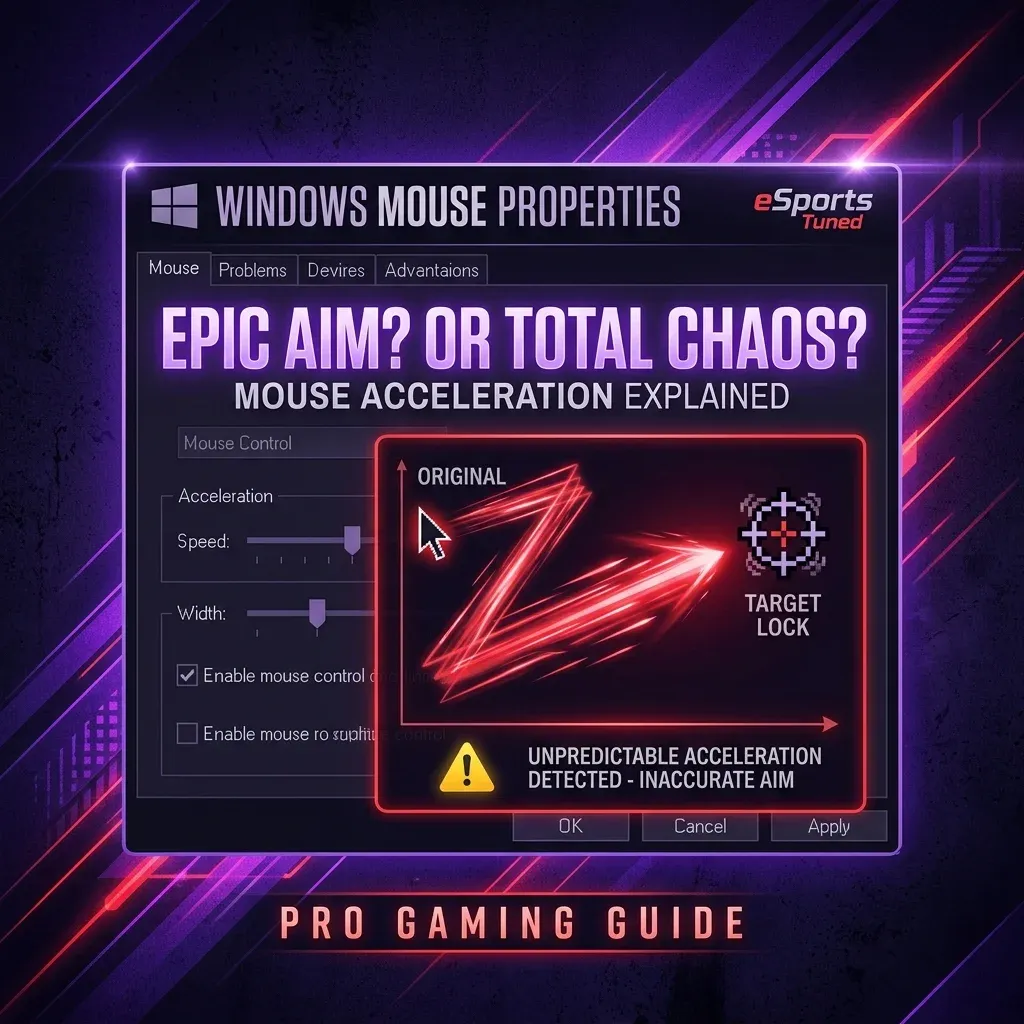


What is Mouse Acceleration?
Mouse acceleration is a system that modifies your cursor speed based on how fast you physically move the mouse — not just how far. With acceleration enabled, moving your mouse 10cm quickly moves the cursor further than moving it 10cm slowly. The same physical movement produces different in-game results depending on speed.
In Windows, this feature is called "Enhance Pointer Precision" and is enabled by default. For productivity tasks (web browsing, document editing), it makes the cursor feel smooth and responsive. For competitive gaming, it is devastating to aim consistency.
Why Mouse Acceleration Destroys Competitive Aim
The entire premise of accurate aim is muscle memory — your hand learns the exact physical distance required to move the crosshair from point A to point B. When acceleration is active, that distance changes based on how fast your hand moves.
This unpredictability is why every tier-1 professional FPS player disables mouse acceleration. It is not a preference — it is a fundamental requirement for developing consistent aim.
How to Disable Mouse Acceleration in Windows
Follow these steps to ensure your Windows system is not interfering with your mouse input:
Method 1: Windows Settings
- Press Windows + I to open Settings
- Go to Bluetooth & devices → Mouse
- Click "Additional mouse settings" (right side panel)
- Click the "Pointer Options" tab
- Under "Motion" section, uncheck "Enhance pointer precision"
- Set pointer speed to the middle setting (6th notch of 11)
- Click Apply → OK
Method 2: Control Panel (Faster)
- Press Windows + R, type
main.cpl, press Enter - Click the "Pointer Options" tab
- Uncheck "Enhance pointer precision"
- Set speed to 6/11 (center), click Apply
Enable Raw Input in Your Game
Disabling Windows acceleration is step 1. Step 2 is enabling Raw Input in your game, which bypasses Windows' mouse processing entirely and reads directly from your mouse sensor.
Valorant
Settings → Mouse → "Raw Input Buffer: On". This setting directly bypasses Windows input handling. Always enable this.
CS2
In the game console, type: m_rawinput 1. This enables raw input. Also verify m_customaccel 0 is set to ensure no in-game acceleration is added.
Apex Legends
Apex does not have an explicit "raw input" toggle — it reads raw input by default on PC. Ensure your in-game Mouse Sensitivity is not set to 0 and Windows acceleration is off (which you already did).
Overwatch 2
Settings → Controls → Mouse → "Custom Sensitivity Per Hero: Off, Mouse Sensitivity: [your value]". OW2 uses raw input by default. No additional toggle needed.
Does In-Game Acceleration Exist?
Yes — some games have their own separate acceleration that applies even with Windows acceleration off and raw input on. Check for these game-specific settings:
- CS2: Open console, type
m_customaccel— if it returns anything other than 0, runm_customaccel 0to disable it. - Call of Duty Warzone: Settings → Mouse → set "Mouse Filtering" to 0.00 and "Mouse Smoothing" to 0.00.
- Apex Legends: No in-game acceleration option — raw input only.
- Valorant: No in-game acceleration — raw input buffer handles this when enabled.
Does Any Pro Use Mouse Acceleration?
Very rarely, and only through system-level tools like MarkC Mouse Fix or Povohat's Mouse Accel driver, which apply a custom, intentional acceleration curve — not Windows' unpredictable default curve. These pros have spent hundreds of hours calibrating their specific curve. For virtually all players, this approach is not recommended.
The only notable pro known for intentionally using a custom acceleration curve is Stewie2K (CS) who has discussed using MarkC fix. Even this is controversial among analysts — his argument is the curve is so mild it is effectively linear at normal play speeds.
How to Verify Mouse Acceleration is Truly Disabled
After disabling everything, verify it worked:
- Open a blank game or use the Windows desktop
- Place your mouse at the far left of your pad
- Move it 20cm to the right very slowly and mark where the cursor lands
- Return to start, now move 20cm to the right very quickly
- The cursor should land in exactly the same position
- If it lands further right when moving fast, acceleration is still active
After Disabling: Recalibrate Your Sensitivity
If you previously played with acceleration enabled, your sensitivity may feel different now — often slower, because you were unconsciously flicking fast to leverage the acceleration. Take 3–5 days to recalibrate. You may need to slightly increase your sensitivity (lower cm/360) to compensate for the removed speed boost.
Use our eDPI calculator and sensitivity converter to find your new baseline. Play 20+ games with the new settings before judging. The consistency improvement will become obvious within a week.
One Final Check: Your Mouse Software
Some gaming mouse software (Razer Synapse, Logitech G HUB) contains its own acceleration settings. Ensure these are all set to zero or disabled. Specifically:
- Razer Synapse: Performance tab → uncheck "Sensitivity Clutch" and ensure no curve is active in Advanced settings.
- Logitech G HUB: Sensitivity → ensure your DPI steps are fixed values, not "DPI Shift" mode.
- SteelSeries GG: Mouse Settings → ensure "Wobble Correction" is set to 0 (it is not acceleration but may affect movement linearity).
With all sources of acceleration eliminated and raw input enabled, your sensitivity is now fully consistent. Now lock your eDPI using our calculator, and start building real muscle memory.
Frequently Asked Questions
What is mouse acceleration?
A system that makes the cursor travel further when you move the mouse faster, for the same physical distance. It breaks the one-to-one relationship between hand movement and camera rotation, which is exactly what aim muscle memory depends on.
How do I turn mouse acceleration off?
In Windows, open Mouse Settings, go to Additional mouse options, then Pointer Options, and uncheck Enhance pointer precision. Set the pointer speed slider to the sixth notch (6/11), which is the only position where Windows applies no scaling. Then enable raw input in each game.
Does raw input alone disable acceleration?
In most games yes, because raw input bypasses the Windows pointer pipeline entirely. But not every game implements it correctly, and the Windows settings cost nothing to fix, so do both rather than relying on the game to protect you.
Pro-Recommended Esports Gear
Top-tier ultralight mice recommended for tournament sensor precision and mousepad tracking consistency:
Logitech G Pro X Superlight 2
The most winning wireless mouse in competitive esports. Iconic shape, HERO 2 sensor, and hybrid optical-mechanical switches.
Razer Viper V3 Pro
Flawless sensor with native 8,000Hz wireless polling rate and a modern symmetrical shape built for elite tracking.
Razer DeathAdder V3 Pro
Engineered for palm and claw grip players needing anatomical support. Flagship Focus Pro 30K optical sensor.
Lamzu Atlantis OG V2 / Thorn
Boutique ultralight mouse with locked-in rear hump. Perfect for aggressive claw grip and micro-adjustments.
Dalto Outlier
Creator, DCPROSENSDalto built DCPROSENS to help competitive FPS players convert sensitivity, calibrate DPI, and keep their aim consistent across games.
Related Guides & Articles
Disclosure: some links on this page are affiliate links. As an Amazon Associate, DCPROSENS earns from qualifying purchases at no extra cost to you.