Your Keyboard’s Most Sensitive Setting May Be Too Sensitive for You
TL;DR
If your movement repeatedly stops or restarts when you do not intend it to, test a less sensitive setting before assuming your technique is the entire problem.


A keyboard lets you choose an extremely small movement threshold. Setting it to the minimum feels like the obvious way to get everything you paid for.
But the smallest threshold is only useful if you can control it. If your movement repeatedly stops or restarts when you do not intend it to, test a less sensitive setting before assuming your technique is the entire problem.
Two settings with different jobs
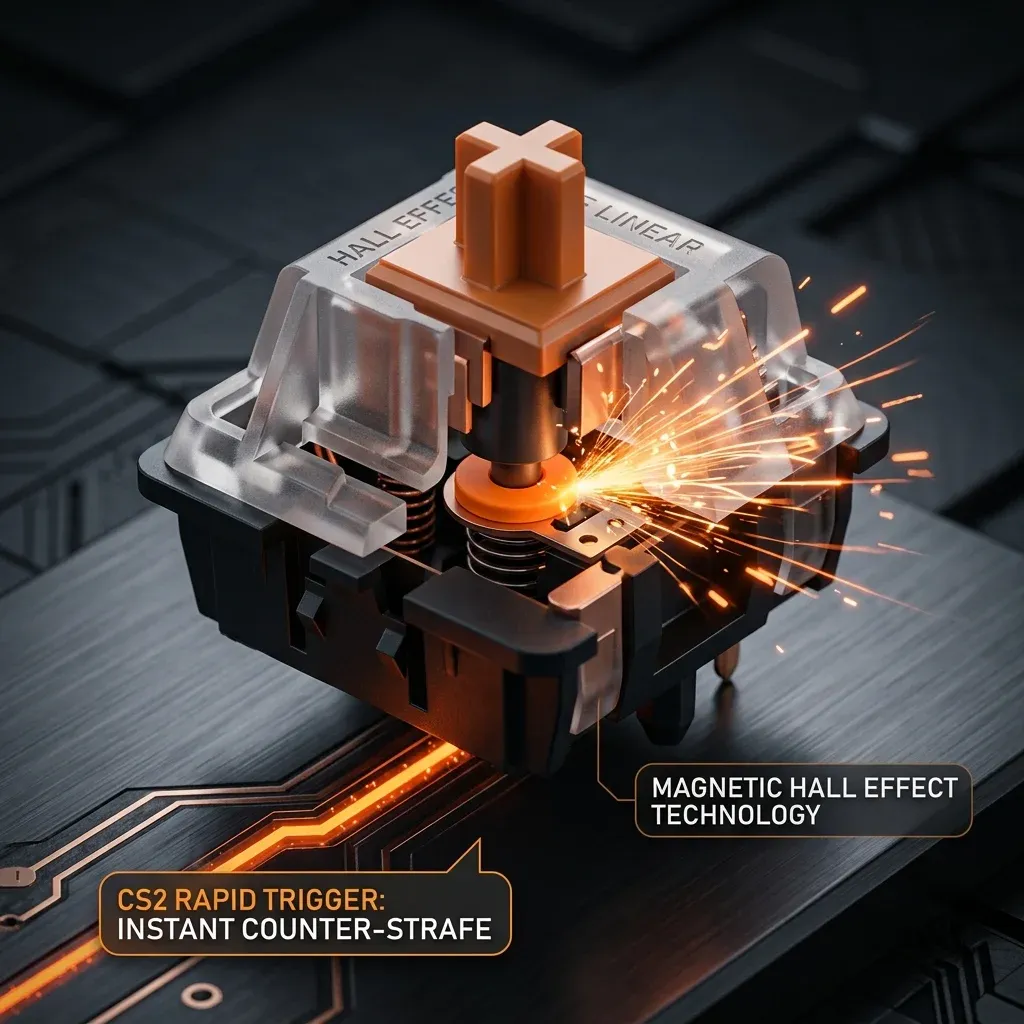
Wooting's rapid-trigger explanation describes activation and deactivation based on key movement rather than relying only on fixed travel points. The implementation and available controls vary by product.
The initial actuation setting concerns when a press first registers. Rapid-trigger behavior concerns how movement can reset and reactivate a key afterward. Adjusting both at once makes it harder to identify which change affected your control.
Also, short key travel is not the same as zero system latency. The keyboard, game and display still form a larger input process. A travel-distance option does not measure that entire chain.
Look for a repeatable mistake
Start with one behavior you can observe in a practice environment. Perhaps holding movement feels inconsistent, or a small release leads to a new input sooner than you expect.
Describe the behavior before changing anything. “I released slightly and movement stopped” is more useful than “the keyboard feels bad.” If the problem is accidental initial presses while resting your fingers, the initial actuation setting may deserve attention separately from rapid-trigger reset.
Use the manufacturer's software or documentation to identify which control you are adjusting. Similar-looking sliders across different products do not necessarily behave identically.
Make the comparison smaller
Save your existing profile. Change one movement key or a clearly defined group of movement keys rather than rebuilding the entire keyboard layout.
Try your current setting, then a modestly less sensitive option. Keep initial actuation unchanged if the device allows an independent comparison. Repeat the same movement sequence with both.
| Practice action | Observe |
|---|---|
| Hold a direction steadily | Any unintended release |
| Release deliberately | Whether the stop matches your intention |
| Press again after a small release | Any unintended repeat or missed input |
| Repeat in ordinary play | Whether the setting remains controllable outside the drill |
This is a preference test, not a measured claim that one threshold makes all players faster. The useful result is fewer unintended inputs while preserving the responsiveness you want.
Keep unrelated features separate
Rapid trigger should not be used as a catch-all name for every keyboard feature. A device may also offer input-priority behavior, remapping or macros. Those can change what happens in ways unrelated to a key's reset distance.
When comparing profiles, record which extra features are active. Check the relevant game's or tournament's rules before enabling separate input automation. Otherwise, you may attribute a behavior to rapid trigger that came from something else.
Give yourself a profile you can trust
After choosing a setting, keep a note of the keyboard model, profile and firmware version. If behavior changes after a software update or profile switch, that note gives you a reference.
You do not need the smallest available number to justify owning the keyboard. You need a setting that turns intended movements into inputs consistently. If backing away from the minimum makes that easier, the adjustment is doing its job.
Eliminate Stick Drift & Optimize Rapid Trigger
Calibrate Hall Effect and TMR magnetic sticks, response curves, and 1000Hz USB polling in our Controller Precision Guide.
🎯 Lock In Perfect 1:1 Aim & Pro Consistency
Tired of daily aim inconsistency? Calibrate your physical cm/360, scope matching, and sensor latency. Get the complete Precision Aim System (4-Part Technical Manifestos) today for only $9.00 USD!
Unlock Elite Precision ($9) ⚡Dalto Outlier
Creator, DCPROSENSDalto built DCPROSENS to help competitive FPS players convert sensitivity, calibrate DPI, and keep their aim consistent across games.
Related Guides & Articles
Disclosure: some links on this page are affiliate links. As an Amazon Associate, DCPROSENS earns from qualifying purchases at no extra cost to you.