What Is Mouse Sensitivity? The Complete Beginner's Guide
TL;DR
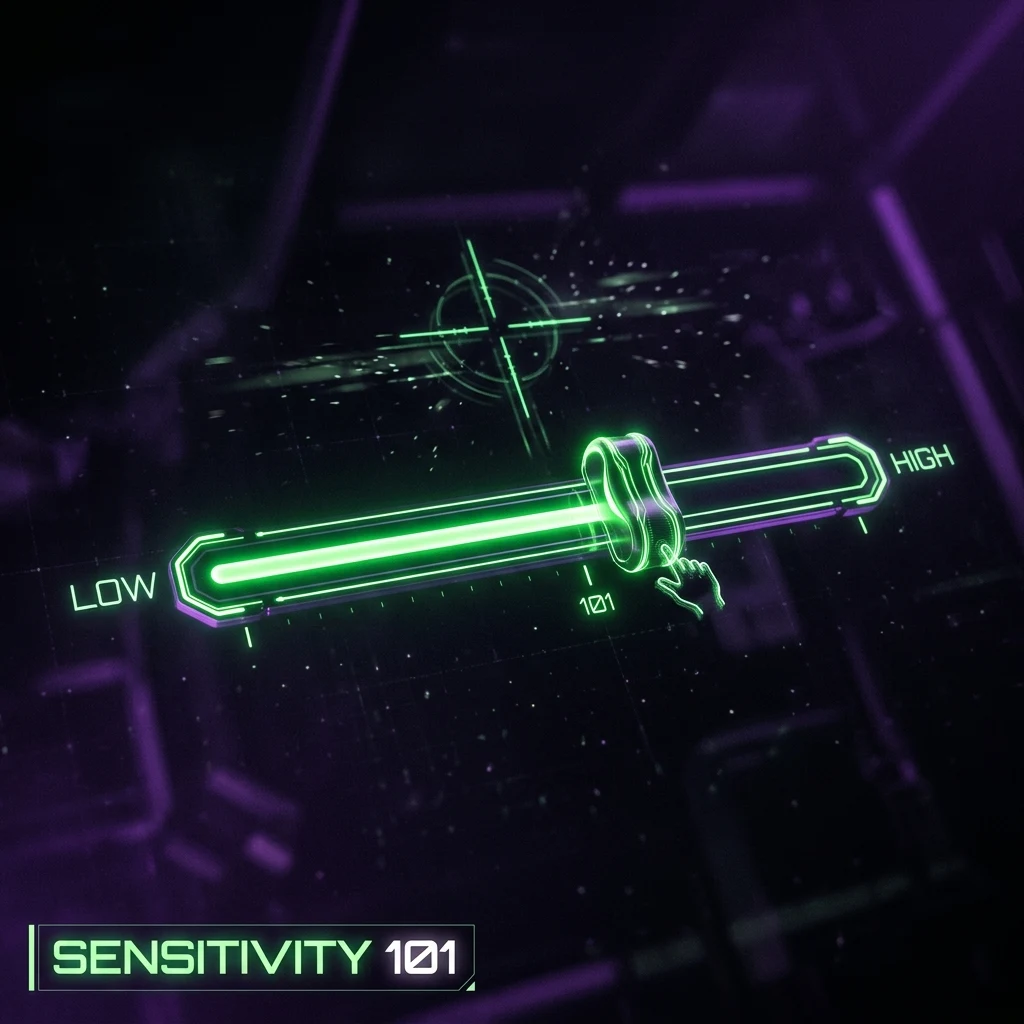
Mouse sensitivity is a multiplier that decides how much your in-game camera rotates for a given amount of physical mouse movement. It works together with your mouse's DPI and your operating system's pointer settings, and none of the three numbers mean anything for aim consistency in isolation — only the combined physical result (how far you move your hand for a full turn) does.
What Sensitivity Actually Controls
Mouse sensitivity is a multiplier applied inside a game (or your OS) that determines how much your in-game camera rotates for every unit of raw movement your mouse sensor reports. It is not a measure of speed on its own — it's a scaling factor. Double your sensitivity and the same one-inch swipe across your mousepad now turns your view twice as far. This single number is the reason two players with visually identical mouse movements can have completely different aim outcomes: one is scaling that movement into a small, precise turn, the other into a huge, fast sweep.
Sensitivity never works alone. It's multiplied against your mouse's DPI (how many position updates the sensor reports per inch of physical travel) to produce your actual effective speed. A sensitivity of "1.0" means almost nothing by itself — it only becomes a real, comparable number once you know the DPI it's paired with. That combined number is called eDPI, and it's covered in detail in our companion guide, eDPI Explained.
It's worth being precise about what "aim" actually means here, because sensitivity only controls one part of it. Sensitivity sets how far your view rotates for a given hand movement — it says nothing about your reaction time, your crosshair discipline, or your game-sense. A perfectly tuned sensitivity won't fix inconsistent aim on its own; what it does is remove one variable from the equation, so the muscle memory you build through practice actually transfers session to session instead of drifting because the underlying scale keeps changing.
In-Game Sens vs. Windows Sens vs. DPI
These three settings sound interchangeable to a new player, but they live in different layers of your system and each one changes your aim differently:
- DPI (Dots Per Inch) is a hardware-level property set on the mouse itself, either through the manufacturer's software or an onboard button. It defines how many counts the sensor sends to your PC per inch of physical movement — 800 DPI means 800 counts per inch, 1600 DPI means 1600 counts for that same inch.
- In-game sensitivity is a software multiplier inside a specific game's settings menu. It scales the raw DPI counts into however much camera rotation that game applies. Every game engine defines this scale differently, which is why the exact same "sensitivity: 1.0" feels wildly different from one title to the next.
- Windows (OS-level) pointer speed is a separate multiplier that affects your desktop cursor, not your in-game camera in most modern FPS titles — competitive games almost universally read "raw input" directly from the mouse driver, bypassing the Windows pointer curve entirely. The one setting worth checking here is Enhanced Pointer Precision, a Windows acceleration curve that should stay off for any game where consistent aim matters, since it makes the same physical swipe produce different results depending on how fast you moved.
Because these three layers stack, the same physical arm motion can be reproduced at radically different-looking DPI and sensitivity numbers. There is no universally "correct" DPI or sensitivity value — what matters is the combined, physical result: how many centimeters your mouse has to travel across the pad for a full 360° turn in-game, a metric known as cm/360.
How to Find Your Current Sensitivity
Your in-game sensitivity number is visible in every FPS's settings menu, usually under Mouse or Controls. Your mouse's actual DPI is trickier — the number your mouse software reports isn't always exactly what the sensor delivers in practice, due to manufacturing tolerance and firmware rounding. Use our DPI analyzer to measure your mouse's real, tested DPI directly from physical movement rather than trusting the software panel.
Once you know both numbers, the more useful metric to actually track is your cm/360 — the physical distance, in centimeters, your mouse travels across the pad for one complete in-game turn. Unlike raw sensitivity, cm/360 is portable: it describes your actual hand-and-arm muscle memory rather than a number specific to one game's internal scale. Our sensitivity finder calculates your cm/360 directly from your current DPI, sensitivity, and game.
Arm Aim vs. Wrist Aim: Why Sensitivity Feels Different Person to Person
Two players can run the exact same DPI, in-game sensitivity, and even the same cm/360, and still describe their sensitivity as feeling completely different — because how you physically execute that movement matters as much as the number itself. Players who aim primarily from the wrist tend to make small, fast corrective movements within a tight area of the mousepad, which pairs naturally with a lower cm/360 (higher effective sensitivity). Players who aim more from the whole arm — shoulder and elbow driving the motion — cover the same physical distance in a wider, flatter sweep, which tends to pair better with a higher cm/360 (lower effective sensitivity), since arm movement is naturally less precise at very small distances.
Neither style is "correct," and most players actually blend both — arm for large flicks, wrist for fine tracking and micro-adjustments. If your sensitivity feels physically uncomfortable rather than just unfamiliar, the mismatch is often between your dominant aiming style and the cm/360 you've set, not a sign that the number itself is wrong.
How to Convert It When Switching Games
Every game engine defines a different internal yaw constant — the exact number of degrees the camera rotates per raw mouse count at a sensitivity of 1.0. Valorant's Unreal Engine uses a yaw of roughly 0.07° per count; CS2's Source 2 engine uses roughly 0.022°; other engines use their own values entirely. Because these constants differ by a factor of three or more between major titles, typing the same raw sensitivity number into a new game almost never reproduces the same physical feel — the math underneath is different even when the on-screen number looks identical.
A sensitivity converter solves this by holding your physical cm/360 constant and solving backward for the new game's correct number, using each engine's own yaw constant. Instead of guessing and re-tuning by feel for hours, you get a mathematically equivalent sensitivity on the first try. Run your numbers through the DCPROSENS sensitivity converter any time you pick up a new game — it currently supports 70+ titles built on the yaw values behind this exact math.
If you're changing your DPI at the same time — say, moving to a mouse with a different default DPI — recalculate your in-game sensitivity rather than leaving it unchanged, since the two settings only produce a consistent cm/360 together. Our DPI calculator handles this pairing directly so you don't have to do the arithmetic by hand.
Common Mistakes Beginners Make With Sensitivity
A few habits derail new players more than any specific number choice does. The first is copying a pro's exact settings without accounting for physical setup — a pro's eDPI assumes their desk depth, mousepad size, and arm/wrist balance, none of which necessarily match yours; copying the number without the physical context often produces a sensitivity that's technically "correct" but uncomfortable to actually play on.
The second is changing sensitivity too frequently. Every adjustment, even a small one, temporarily disrupts the muscle memory you've built at the previous setting. Players who chase a "perfect" number by tweaking constantly usually end up worse off than players who pick a reasonable setting and stick with it through a genuine adjustment period — typically one to two weeks of regular play — before judging whether it's actually working.
The third is leaving mouse acceleration or Enhanced Pointer Precision on without realizing it, which breaks the entire premise of a fixed sensitivity, since the same physical movement then produces inconsistent results depending on how fast you moved it. Confirm raw input is enabled and acceleration is fully disabled — in Windows, in your mouse's software, and in the game's own settings — before trusting any sensitivity number, converted or otherwise.
Frequently Asked Questions
Frequently Asked Questions
Is higher or lower sensitivity better for FPS games?
Neither is objectively better — it's a tradeoff between reaction speed (higher sensitivity, less physical movement needed) and fine-aim precision (lower sensitivity, more room to make small, controlled adjustments). Most competitive FPS players trend toward the lower-to-medium end of the practical range because it makes small corrections easier to control, but plenty of top-level players play higher and compensate with practice.
Does mouse sensitivity affect aim accuracy?
Indirectly, yes. Sensitivity that's too high makes fine corrections hard to control, and sensitivity that's too low can make fast target switches physically tiring or slow. Accuracy comes from consistent muscle memory built at a fixed setting, so the specific number matters less than picking one you can keep consistent across sessions.
Equipamentos de Elite Recomendados
Mouses ultra-leves topo de linha recomendados pelo Treinador Dalto para máxima precisão de sensor e consistência física no seu mousepad:
Logitech G Pro X Superlight 2
O mouse mais vencedor do cenário competitivo. Shape icônico, sensor HERO 2 e switches ópticos-mecânicos híbridos.
Razer Viper V3 Pro
Rastreador preciso com polling rate sem fio nativo de 8.000 Hz e formato simétrico ergonômico moderno.
Razer DeathAdder V3 Pro
Excelente para pegadas palm ou claw que querem apoio anatômico. Sensor Focus Pro 30K de última geração.
Lamzu Atlantis OG V2 / Thorn
Mouse boutique com peso irrisório e base vazada. Pegada traseira perfeita para controle agressivo de claw grip.
🎯 Lock In Perfect 1:1 Aim & Pro Consistency
Tired of daily aim inconsistency? Calibrate your physical cm/360, scope matching, and sensor latency. Get the complete Precision Aim System (4-Part Technical Manifestos) today for only $9.00 USD!
Unlock Elite Precision ($9) ⚡Dalto Outlier
Creator, DCPROSENSDalto built DCPROSENS to help competitive FPS players convert sensitivity, calibrate DPI, and keep their aim consistent across games.