More FPS Is Not Always Faster Input: What Frame Generation Changes
TL;DR
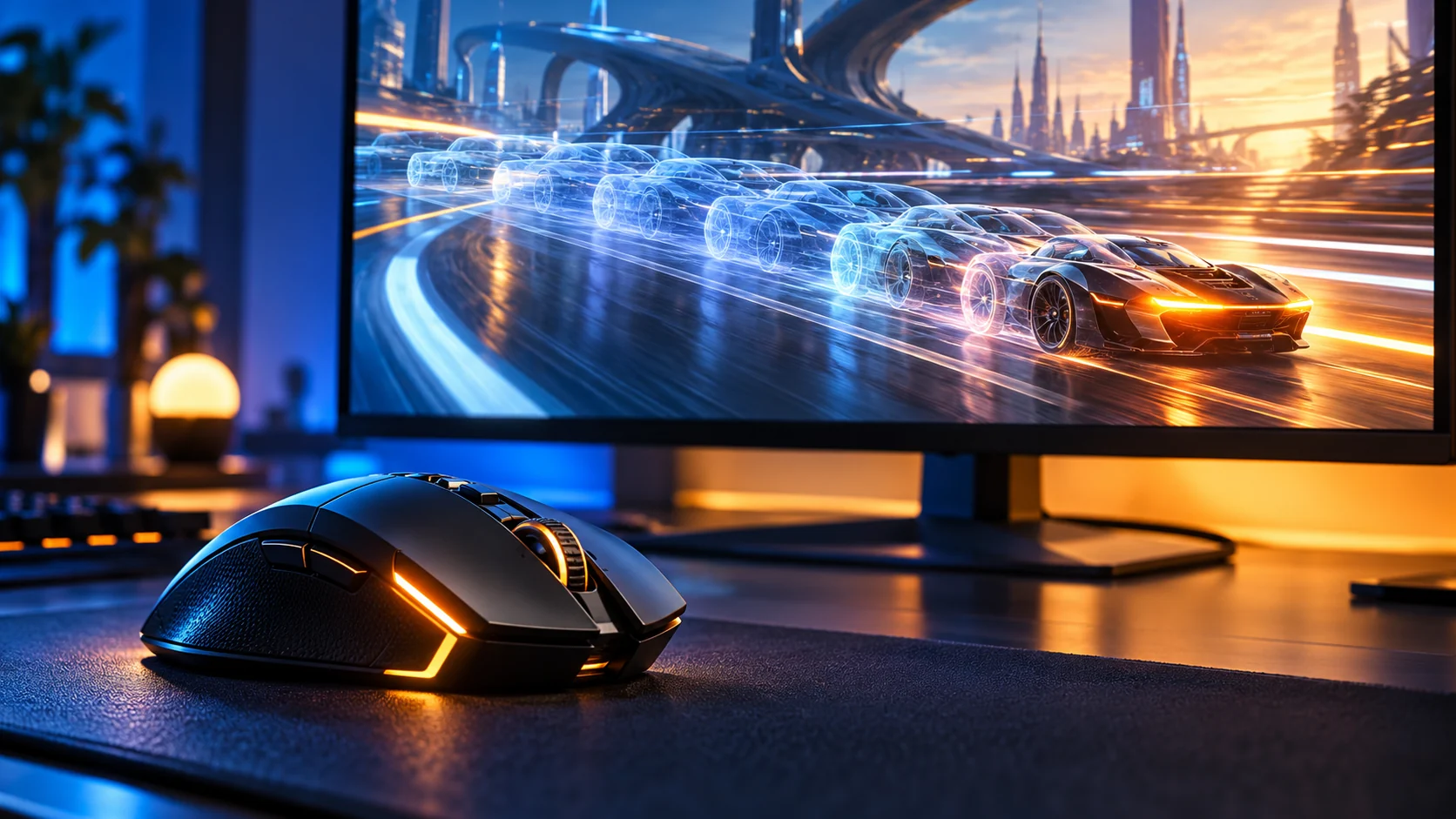
Frame generation adds images to the presentation of a game; a higher displayed frame count does not, by itself, prove a proportional reduction in input latency.


The FPS counter jumps. The camera looks smoother. Your next mouse movement still does not feel twice as quick.
That is not necessarily a fault. Frame generation adds images to the presentation of a game; a higher displayed frame count does not, by itself, prove a proportional reduction in input latency. When comparing settings, judge the picture and the controls separately.
One counter, two different questions
NVIDIA's DLSS documentation describes frame generation as creating additional frames with AI. It also describes latency-reduction technology alongside it. Those are related parts of a graphics pipeline, but they are not interchangeable measurements.
The useful distinction is between how frequently new game frames are rendered and how frequently images are presented. A generated image can improve the appearance of motion without representing an entirely new simulation update responding to your latest input.
That does not make the image worthless. Smoother scenery can be exactly what you want in an exploration game. It does mean that “more FPS” needs context when the goal is responsive aiming.
Run two comparisons, not one
Start with a repeatable scene in a game that supports the feature. A quiet practice area is easier to compare than two unrelated online matches.
Record your resolution, upscaling mode, frame cap, synchronization settings and latency-reduction setting. Compare frame generation off and on while keeping the other settings fixed where the game permits it. If enabling the feature forces another setting to change, write that down: you are comparing two configurations, not isolating one switch.
First, look at motion. Pan past detailed scenery, thin objects and interface elements. Watch for distracting instability rather than hunting for flaws in a paused screenshot.
Second, interact. Track a target, stop a turn on a landmark, and repeat a short movement sequence. Your impression is useful for choosing a setting, but it is not a laboratory measurement of milliseconds.
If the game supplies latency telemetry, read its definition. A rendering-latency metric and a complete click-to-display measurement cover different parts of the process. Do not put them in the same comparison column.
| Record | What it helps you decide |
|---|---|
| Displayed FPS and the overlay used | Whether the presentation rate changed |
| Base rendered FPS, if separately available | What the underlying rendering workload is doing |
| Identically defined latency metric | Whether that measured part of the response changed |
| Visible artifacts during movement | Whether the visual trade-off bothers you |
| Your preference in the same practice task | Which configuration you actually want to use |
Avoid changing your sensitivity to compensate
If the controls seem delayed, raising sensitivity changes turn distance. It does not identify or remove the cause of the delay. Keep sensitivity stable during the comparison so that you are not learning a new mouse movement at the same time.
For a competitive match, you might prefer one configuration; for a visually demanding single-player game, another. Neither decision requires calling every generated frame “fake” or assuming every larger counter is automatically better.
Keep the result specific
Save a note with the game, graphics settings and hardware. A result from one title is not a universal verdict on every implementation, and a future game update may change the comparison.
The next time a performance screenshot catches your attention, ask one extra question: what happened to response and image quality at those settings? The FPS number becomes more useful once it stops carrying the entire argument.
For sensitivity changes after your graphics test, use the DCPROSENS converter as a starting calculation, then verify the result in the game.
Optimize Refresh Rates, Latency & Frame Pacing
Dive deeper into click-to-photon latency pipelines in our FPS & Input Lag Playbook, or book our 1:1 expert PC tuning in the DCPROSENS 360° VIP Overhaul.
🎯 Lock In Perfect 1:1 Aim & Pro Consistency
Tired of daily aim inconsistency? Calibrate your physical cm/360, scope matching, and sensor latency. Get the complete Precision Aim System (4-Part Technical Manifestos) today for only $9.00 USD!
Unlock Elite Precision ($9) ⚡Dalto Outlier
Creator, DCPROSENSDalto built DCPROSENS to help competitive FPS players convert sensitivity, calibrate DPI, and keep their aim consistent across games.
Related Guides & Articles
Disclosure: some links on this page are affiliate links. As an Amazon Associate, DCPROSENS earns from qualifying purchases at no extra cost to you.