G-Sync Explained: Does It Help or Hurt Your Aim?
TL;DR
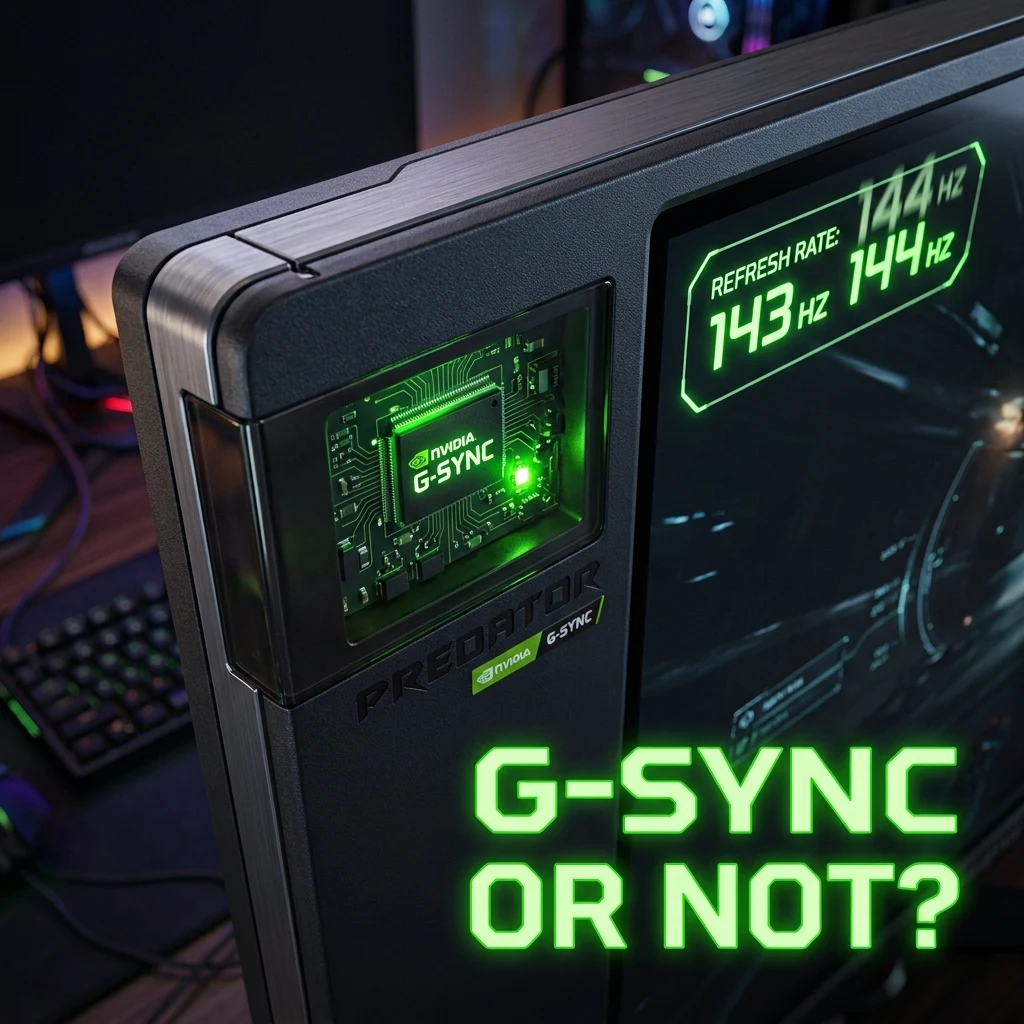
G-Sync is NVIDIA's adaptive sync technology that varies your monitor's refresh rate in real time to match your GPU's frame output, eliminating screen tearing without forcing frames to wait the way traditional V-Sync does. Within its supported frame-rate range it doesn't meaningfully hurt competitive aim, but it should still be paired carefully with V-Sync and a frame-rate cap to avoid input lag once you exceed your monitor's max refresh rate.
How G-Sync Differs from V-Sync
Traditional V-Sync solves screen tearing by holding the GPU's finished frames back until the monitor's fixed refresh cycle comes around — the monitor's refresh rate stays constant, and the GPU adapts (and waits). G-Sync flips that relationship: it lets the monitor's refresh rate vary in real time to match whatever frame rate the GPU is actually producing, using a variable refresh window instead of a fixed one. Because frames are displayed as soon as they're ready rather than held in a buffer, G-Sync eliminates the classic V-Sync input-lag penalty while still preventing the tearing that comes from an unsynced frame rate. Our V-Sync explainer covers the traditional method this is solving for in more detail.
G-Sync requires cooperation from three layers to work correctly: an NVIDIA GPU, a monitor that supports either native G-Sync or the VESA Adaptive-Sync standard NVIDIA certifies as "G-Sync Compatible," and the connection between them (typically DisplayPort, with HDMI support varying by monitor generation). AMD's equivalent, FreeSync, works on the same underlying Adaptive-Sync principle but through AMD GPUs, and many modern monitors support both standards simultaneously regardless of which GPU brand is plugged in, since Adaptive-Sync itself is an open, vendor-neutral protocol.
Before G-Sync existed as a consumer feature, competitive players had exactly two practical options: leave sync off and accept tearing, or enable V-Sync and accept the latency cost — there was no middle ground. Adaptive sync technologies changed that tradeoff fundamentally, which is part of why they've become close to a default recommendation on any monitor that supports them, rather than a niche feature reserved for non-competitive use the way V-Sync increasingly is.
G-Sync + High Refresh Rate Combo
G-Sync's benefit is largest precisely when your frame rate fluctuates below your monitor's max refresh rate — the exact situation, for example, of a 240Hz monitor paired with a GPU that's actually delivering 160–220 FPS in a demanding scene. Without G-Sync, that fluctuation produces both tearing and stutter as frame delivery and refresh timing drift apart; with G-Sync, the display simply refreshes in step with whatever the GPU sends, smoothing the experience without adding V-Sync's typical wait-for-refresh delay. On a high refresh rate panel, this combination generally delivers the smoothest experience achievable without also uncapping your frame rate past what the monitor can display, which is where G-Sync needs a companion setting to avoid trouble.
Native G-Sync vs. G-Sync Compatible vs. G-Sync Ultimate
Not every monitor labeled "G-Sync" implements it the same way, and the difference matters for how well it performs. Native G-Sync monitors use a dedicated NVIDIA hardware module built into the display, which typically supports a wider variable refresh range (down to as low as 30Hz on some panels) and handles edge cases — like frame rates briefly spiking outside the supported range — more gracefully. G-Sync Compatible monitors instead rely on the industry-standard VESA Adaptive-Sync protocol (the same underlying technology AMD FreeSync uses), certified by NVIDIA to meet a baseline quality bar, but without the dedicated module. G-Sync Ultimate adds HDR and broader color/brightness capability on top of the native module — a display-quality upgrade rather than a latency one. For purely competitive purposes, the practical difference between these tiers is usually smaller than panel quality and refresh rate itself; a good G-Sync Compatible monitor at 240Hz+ will outperform a mediocre native G-Sync panel at a lower refresh rate for aim purposes.
When to Disable It for Competitive Play
G-Sync only operates within your monitor's supported refresh range — if your GPU's frame rate exceeds your monitor's maximum refresh rate, G-Sync effectively turns off for those frames, and you're back to the tearing and (if V-Sync is left enabled as a fallback) the input lag V-Sync introduces. NVIDIA's own recommended configuration for this exact scenario is to enable G-Sync alongside V-Sync in the GPU control panel and cap your in-game frame rate a few frames below your monitor's max refresh rate — this keeps you inside the G-Sync range at all times, so the V-Sync fallback never actually engages and never adds its usual delay. Skipping the frame cap is the most common way players end up thinking "G-Sync causes lag," when the real cause is an uncapped frame rate repeatedly spilling outside the G-Sync window.
Within its intended operating range, G-Sync is not something competitive players typically need to disable — it reduces stutter and tearing-related inconsistency without the added latency that made V-Sync alone a bad fit for fast-paced FPS play. Some purists still prefer running fully uncapped with all sync options off on very high refresh monitors where GPU output consistently exceeds the panel's refresh rate, since that guarantees the lowest possible latency at the cost of some tearing. Check your actual achievable frame rate against your monitor's refresh rate using the FPS calculator and the monitor simulator before deciding which setup fits your hardware.
There's also NVIDIA Reflex to consider alongside G-Sync, since the two are frequently enabled together in modern competitive titles. Reflex targets a different part of the latency pipeline — it reduces the render queue depth so the GPU doesn't build up a backlog of frames waiting to be displayed, which complements G-Sync's job of matching refresh timing to frame delivery rather than duplicating it. Games that support both typically recommend enabling each independently rather than treating them as alternatives to each other.
Whichever sync setup you land on, it doesn't change your sensitivity math — pair it with an accurate sensitivity conversion and a properly measured real DPI so the rest of your setup is consistent. If you haven't already gone through the standard V-Sync tradeoffs G-Sync is designed to avoid, our companion guide V-Sync Explained covers exactly what it's solving for.
Does G-Sync Actually Hurt Your Aim?
The claim that G-Sync itself "hurts aim" doesn't hold up mechanically — nothing about variable refresh timing changes your sensitivity, your DPI, or your mouse's polling rate. What can hurt aim-adjacent consistency is frame time variance, and G-Sync's entire purpose is reducing that variance, not increasing it, by keeping the display in step with whatever the GPU actually delivers. The confusion usually traces back to the uncapped-frame-rate scenario described above: a frame rate that keeps spiking past the monitor's refresh ceiling and falling out of the G-Sync range genuinely does reintroduce the tearing and lag issues G-Sync is meant to prevent — but that's a configuration mistake, not a property of G-Sync itself.
Part of why this myth persists is that G-Sync became mainstream around the same time competitive players were being told, correctly, to disable V-Sync — and the two got bundled together in community advice as "any kind of sync is bad for competitive play," even though they solve the same problem through mechanically different means with very different latency costs. G-Sync's variable refresh approach was specifically designed to avoid V-Sync's buffering penalty, not to inherit it, which is the core distinction worth remembering when evaluating advice that treats them interchangeably.
Frequently Asked Questions
Frequently Asked Questions
Can you use G-Sync and V-Sync together?
Yes, and NVIDIA specifically recommends it as a safety net: enable both, then cap your in-game frame rate a few frames below your monitor's max refresh rate. This keeps your frame rate inside the G-Sync range at all times, so the V-Sync fallback (and its usual input lag) never actually activates.
Does G-Sync add input lag in competitive games?
Not meaningfully, as long as your frame rate stays within your monitor's supported refresh range — G-Sync displays frames as soon as they're ready rather than holding them for a fixed refresh cycle. Lag issues attributed to G-Sync usually come from an uncapped frame rate exceeding the monitor's max refresh, which pushes the display outside G-Sync's operating window.
🎯 Lock In Perfect 1:1 Aim & Pro Consistency
Tired of daily aim inconsistency? Calibrate your physical cm/360, scope matching, and sensor latency. Get the complete Precision Aim System (4-Part Technical Manifestos) today for only $9.00 USD!
Unlock Elite Precision ($9) ⚡Dalto Outlier
Creator, DCPROSENSDalto built DCPROSENS to help competitive FPS players convert sensitivity, calibrate DPI, and keep their aim consistent across games.