V-Sync Explained: Should You Use It for Competitive FPS?
TL;DR
V-Sync synchronizes your GPU's frame delivery to your monitor's refresh rate to eliminate screen tearing, but doing so forces frames to wait in a buffer, adding real input lag. For competitive FPS play, that added lag almost always outweighs the visual benefit of eliminated tearing, so most competitive players and pros play with V-Sync off.
What V-Sync Does
V-Sync exists on essentially every platform that renders 3D graphics — consoles included — but this guide focuses on PC, where the setting is directly adjustable per-game and per-GPU, and where competitive players have the most control over the tradeoff described below.
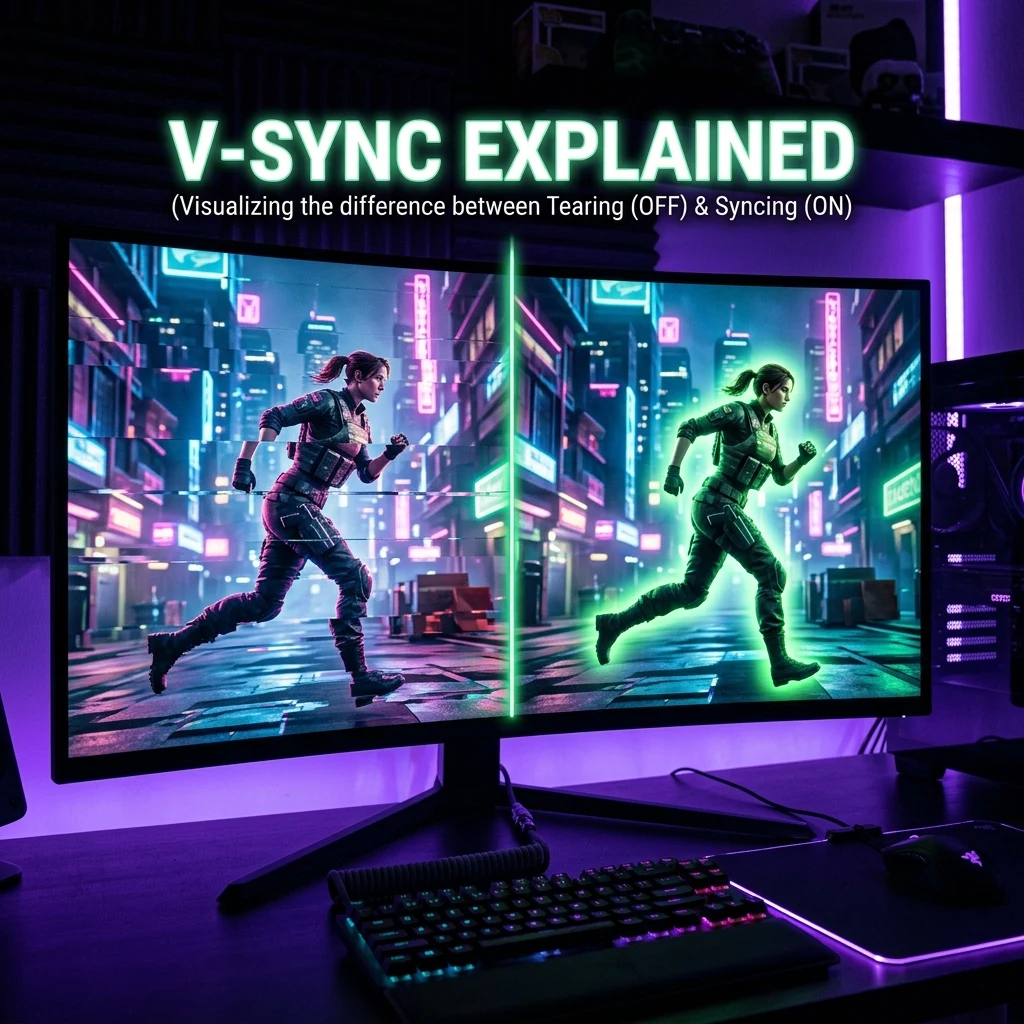
V-Sync (vertical synchronization) forces your GPU to hold each finished frame until your monitor's next refresh cycle before displaying it, rather than sending frames the instant they're ready. This prevents screen tearing — the visual artifact where the top and bottom of your screen briefly show two different frames at once because a new frame was pushed mid-refresh. Without V-Sync, tearing happens whenever your GPU's frame rate doesn't line up cleanly with your monitor's refresh rate, which is most of the time.
The Input Lag Tradeoff
Eliminating tearing this way comes at a real cost: holding a completed frame back until the next refresh cycle adds a delay between when a frame is rendered and when you actually see it, on top of whatever delay already exists in your rendering pipeline. In the worst case, V-Sync can add close to a full frame's worth of extra lag, and some implementations queue multiple frames, compounding the delay further. This is the core V-Sync tradeoff: less visual tearing, more time between your input and what appears on screen.
The severity of this tradeoff depends heavily on your frame rate relative to your monitor's refresh rate. If your GPU is delivering frames well above your refresh rate, V-Sync's added delay is smaller and more consistent. If your frame rate is fluctuating close to or below your refresh rate, V-Sync-induced stutter becomes far more noticeable, since the GPU has to wait longer and less predictably for the next available refresh window.
There's a related but separate concept worth distinguishing: a plain frame rate cap (limiting your FPS to a fixed number without V-Sync's buffering behavior) doesn't carry the same latency penalty. Capping your frame rate a few frames below your monitor's max refresh, without enabling V-Sync itself, is a common way competitive players reduce tearing risk and stabilize frame timing without paying V-Sync's full input lag cost — it's a different mechanism even though the two are frequently confused.
Triple Buffering and Fast Sync as a Middle Ground
Traditional V-Sync (double buffering) is the version with the worst latency reputation, since the GPU has nowhere to put a finished frame except wait. Triple buffering and NVIDIA's Fast Sync (or AMD's Enhanced Sync) use a third buffer, letting the GPU keep rendering new frames continuously rather than idling while waiting for the display's refresh window — the display then pulls whichever frame is most current at refresh time, discarding the rest. This meaningfully reduces V-Sync's input lag penalty compared to standard double-buffered V-Sync, but it only works well when your GPU's frame rate is comfortably above your monitor's refresh rate; if your frame rate is close to or below the refresh rate, ordinary triple buffering can add as much delay as standard V-Sync, not less.
When V-Sync Helps vs. Hurts
V-Sync is genuinely useful in single-player and slower-paced games where tearing is visually distracting and split-second reaction time isn't the point — the smoother, tear-free image is worth the small added latency there. It's a much worse tradeoff in competitive FPS titles, where duels are frequently decided by tens of milliseconds and the extra input delay V-Sync introduces works directly against you. For this reason, the overwhelming convention among competitive players is to leave V-Sync off in tactical shooters and hero shooters, accepting occasional tearing (which is far less common anyway on high-refresh monitors, where frame rate and refresh rate stay closer together) in exchange for the lowest possible input latency. Check how your monitor's refresh rate interacts with your GPU's actual output using our monitor simulator before deciding how much tearing risk you're actually exposed to.
If you specifically want tear-free output without V-Sync's added lag, adaptive sync technologies — NVIDIA G-Sync and AMD FreeSync — solve the same problem differently, by varying the monitor's refresh rate to match the GPU instead of forcing the GPU to wait. See our companion guide, G-Sync Explained, for how that tradeoff compares.
Where you land on this also depends on your monitor's refresh rate specifically. On a 60Hz display, an uncapped frame rate well above 60 FPS produces frequent, often visually jarring tearing, making the case for some form of sync (ideally adaptive sync rather than traditional V-Sync) stronger even for competitive play. On a 240Hz+ display, frame rate and refresh rate are close enough in most modern competitive titles that tearing is both less frequent and less visually obvious, which is part of why "just turn V-Sync off" has become safer, simpler default advice as high-refresh monitors have become standard competitive gear.
How to Turn It Off
V-Sync can be set in two places, and it's worth checking both, since a setting enabled in one location can silently override the other:
- In-game settings — most FPS titles have their own V-Sync toggle in the video/display settings menu. Set it to Off.
- GPU control panel — NVIDIA Control Panel and AMD Software both have a global or per-application V-Sync setting that can force it on even if the in-game option is off. Set the global option to "Use the 3D application setting" (NVIDIA) or off entirely, and confirm no per-game profile is overriding it.
Some games also expose V-Sync-adjacent settings under different names — "Sync Every Frame," "Adaptive V-Sync," or a frame-rate limiter tied to refresh rate — worth checking individually if tearing or stutter persists after disabling the setting labeled simply "V-Sync." Adaptive V-Sync specifically only engages V-Sync's buffering when your frame rate exceeds your refresh rate, and disables it below that threshold, functioning as a partial middle ground between fully on and fully off.
It's also worth double-checking after a graphics driver update — driver updates occasionally reset global GPU control panel settings, including V-Sync, back to their default state. If tearing or added input delay suddenly reappears after updating your NVIDIA or AMD driver, that's the first place to check before assuming something else changed.
There's one edge case where competitive players sometimes still reach for V-Sync: a GPU that's severely underpowered for the game being played, producing wildly inconsistent frame rates well below the monitor's refresh rate. In that specific scenario, uncontrolled frame delivery can cause its own stutter that's arguably more disruptive than V-Sync's added latency — though the better long-term fix is addressing the underlying performance issue (lowering settings, upgrading hardware, or checking for a CPU/GPU bottleneck with our FPS calculator) rather than treating V-Sync as a permanent workaround for a GPU that can't keep up.
After disabling V-Sync, check your resulting frame rate against your CPU/GPU headroom with the FPS calculator, and make sure your sensitivity and crosshair are dialed in for the smoother, lower-latency feel — use the sensitivity converter and crosshair generator to finish the rest of your competitive setup.
If you're deciding between V-Sync and an adaptive sync alternative because you're still getting visible tearing with V-Sync off, read our companion guide, G-Sync Explained, before turning V-Sync back on — G-Sync and FreeSync solve the same tearing problem without V-Sync's usual latency cost, as long as your monitor supports one of them.
Frequently Asked Questions
Frequently Asked Questions
Does V-Sync increase input lag?
Yes. V-Sync holds completed frames until the monitor's next refresh cycle instead of displaying them immediately, which adds real delay between your input and what you see — in the worst case, close to a full frame or more if multiple frames are queued.
Should pro players use V-Sync?
Almost never in competitive FPS titles. The added input lag works directly against fast reaction times and precise tracking, so the overwhelming majority of professional and high-level competitive players play with V-Sync disabled, accepting occasional screen tearing in exchange for lower latency.
🎯 Lock In Perfect 1:1 Aim & Pro Consistency
Tired of daily aim inconsistency? Calibrate your physical cm/360, scope matching, and sensor latency. Get the complete Precision Aim System (4-Part Technical Manifestos) today for only $9.00 USD!
Unlock Elite Precision ($9) ⚡Dalto Outlier
Creator, DCPROSENSDalto built DCPROSENS to help competitive FPS players convert sensitivity, calibrate DPI, and keep their aim consistent across games.
Related Guides & Articles
Disclosure: some links on this page are affiliate links. As an Amazon Associate, DCPROSENS earns from qualifying purchases at no extra cost to you.