NVIDIA Reflex On vs Reflex On + Boost: When Does Boost Actually Help?
TL;DR
Reflex On clears the GPU render queue when GPU usage approaches 100%. Reflex Boost keeps GPU clock frequencies pinned at maximum even during CPU-limited moments, preventing clock transition delays at the cost of higher power draw.


The Architecture of the Render Queue
In modern 3D game engines, the CPU processes game physics, player inputs, and draw calls before dispatching them to the GPU for rendering. When your graphics card runs at 95% to 99% utilization, a buffer known as the GPU render queue builds up. This queue can hold 2 to 3 frames of work, which means the images appearing on your display represent inputs you made 20 to 45 milliseconds ago.
NVIDIA Reflex SDK addresses this directly by synchronizing the CPU engine tick with the GPU rendering pipeline, dynamically discarding the backlog so the GPU renders frames just-in-time for display scanout.
Reflex On vs Reflex On + Boost: The Mechanical Difference
| Reflex Mode | Queue Elimination | GPU Clock Management | Ideal Workload |
|---|---|---|---|
| Disabled | None (Standard 1–3 frame queue) | Dynamic driver power saving | Non-competitive or unsupported titles |
| Reflex On | Active zero-queue pacing | Standard P-state frequency ramping | Balanced desktops & gaming laptops |
| Reflex On + Boost | Active zero-queue pacing | Clocks locked to maximum competitive state | High-end desktops with robust cooling |
Why Boost Prevents Frequency Downclocks
Modern GPUs use dynamic frequency scaling algorithms (like NVIDIA GPU Boost) to save power. When you hold an angle in Valorant or Counter-Strike 2, scene complexity drops. A standard GPU may downclock from 2750 MHz to 1900 MHz to conserve energy.
The instant an opponent peeks and multiple smoke grenades detonate, the GPU must instantly ramp clocks back up. That transitional state can introduce a 3 to 8 millisecond latency penalty right when you need precision input registration. Reflex Boost keeps GPU clocks locked at peak boost speeds, ensuring immediate frame delivery.
Diagnostic Checklist for Competitive Setups
- Verify In-Game Support: Enable Reflex in your game settings. For non-Reflex titles, set Low Latency Mode to Ultra in the NVIDIA Control Panel.
- Check Thermal Headroom: Monitor GPU temperatures under load. If temperatures exceed 83°C on desktop or 86°C on laptop, thermal throttling will negate the benefits of Boost.
- Frame Rate Limiting: Pair Reflex with an in-engine frame cap 3–4 FPS below your monitor's G-Sync/FreeSync ceiling to maintain active VRR variable sync without latency penalties.
After optimizing your frame delivery pipeline, calibrate your physical aim mechanics with the DCPROSENS Universal Sensitivity Calculator to ensure input hardware matches your display timing.
Fine-Tune Your Click-to-Photon Response Pipeline
Master hardware interrupts, render sync, and DPC buffer optimization in our FPS & Input Lag Playbook, or let our latency engineers calibrate your PC with the DCPROSENS 360° VIP Overhaul.
Frequently Asked Questions
Does NVIDIA Reflex Boost increase FPS?
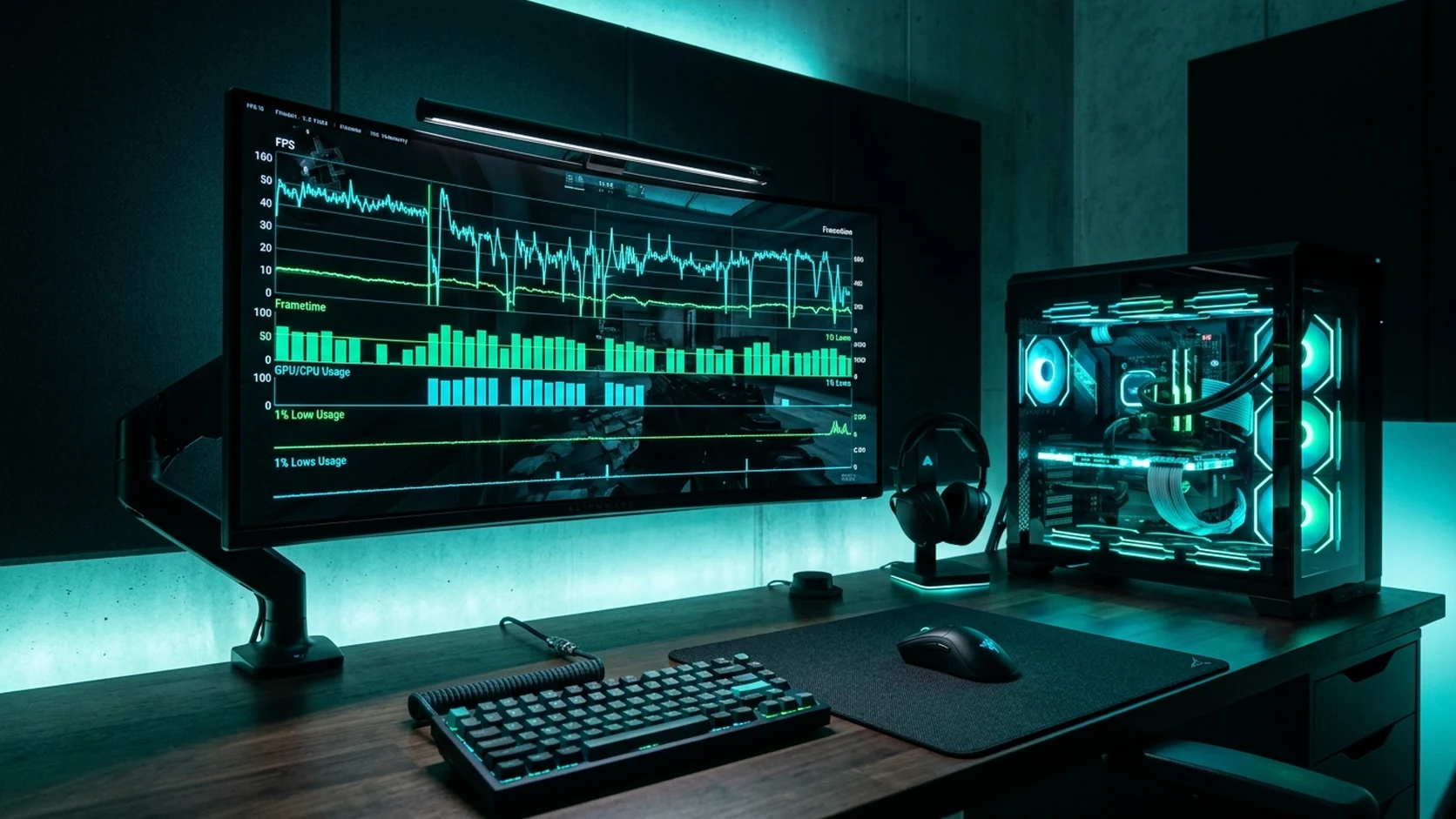
No. Reflex Boost optimizes system latency and prevents clock throttling; it does not increase peak frame rates. In CPU-bound scenarios, it stabilizes 1% frametime lows.
Should I always leave Reflex on Boost?
On desktop PCs with proper cooling, Reflex On + Boost provides the lowest latency ceiling. On laptops or thermally constrained systems, continuous high clocks can cause thermal throttling, making standard Reflex On preferable.
Does Reflex work if my GPU usage is below 90%?
Standard Reflex primarily mitigates GPU queue bottlenecks above 90% load. However, Reflex Boost still benefits CPU-bound scenarios by preventing power-saving downclocks during quiet game scenes.
🎯 Lock In Perfect 1:1 Aim & Pro Consistency
Tired of daily aim inconsistency? Calibrate your physical cm/360, scope matching, and sensor latency. Get the complete Precision Aim System (4-Part Technical Manifestos) today for only $9.00 USD!
Unlock Elite Precision ($9) ⚡Dalto Outlier
Creator, DCPROSENSDalto built DCPROSENS to help competitive FPS players convert sensitivity, calibrate DPI, and keep their aim consistent across games.
Related Guides & Articles
Disclosure: some links on this page are affiliate links. As an Amazon Associate, DCPROSENS earns from qualifying purchases at no extra cost to you.