What Is Logitech G HUB? Full Setup Guide for DPI & Mouse Settings
TL;DR
Logitech G HUB is Logitech's official configuration software for its gaming mice, keyboards, and headsets — it sets DPI steps, polling rate, button remaps, macros, RGB lighting, and per-application profiles. It's only required while you're actively changing settings, since most Logitech mice store profiles onboard; some users report it using significant background CPU/RAM, which is worth knowing before leaving it running by default.
What G HUB Does
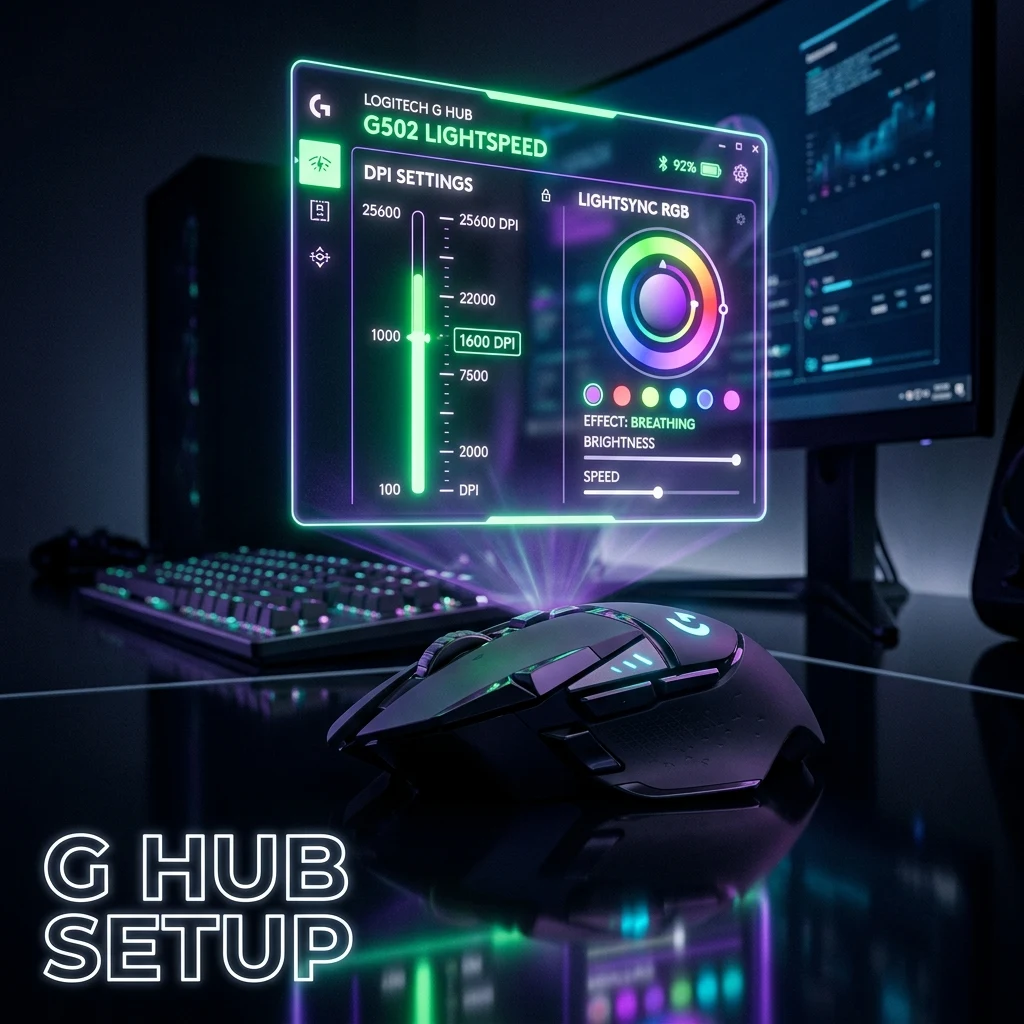
Logitech G HUB is the official companion app for Logitech's gaming peripherals — mice, keyboards, headsets, and webcams. For mice specifically, it's where you configure DPI steps (including custom values beyond the hardware default presets), polling rate, button and macro assignments, LIGHTSYNC RGB lighting across roughly 16.8 million colors, and per-game automatic profile switching, which detects a running application and loads a matching profile without you touching the software. Most of these settings, once configured, are saved to the mouse's onboard memory, meaning the mouse continues using them even on a different PC without G HUB installed.
G HUB replaced Logitech's older Logitech Gaming Software (LGS), which is now discontinued for new setups. The practical difference for most users: G HUB has a more modern, card-based interface and unified device management across mice, keyboards, and headsets in one app, while LGS used a more utilitarian per-device panel. If you're setting up a newer Logitech peripheral, G HUB is the only supported option — LGS doesn't recognize most recent hardware releases.
G HUB is also where firmware updates for Logitech mice are delivered, which matters more than it might seem — firmware updates have occasionally shipped fixes for sensor tracking edge cases, button debounce timing, and wireless connection stability on specific models. Checking for a firmware update after a fresh install, and periodically afterward, is worth doing even if you're otherwise happy with your current settings.
Installing It
G HUB is downloaded directly from Logitech's official support site and installs as a standard Windows or macOS application. On first launch it detects any connected Logitech G-series peripherals automatically and prompts you through firmware updates if any are available — worth doing on a first setup, since firmware updates occasionally fix sensor or button-debounce issues. After that, each connected device gets its own settings tab inside the app where DPI, buttons, and lighting are configured individually.
You'll also be prompted to optionally sign in with a Logitech account, which enables cloud-synced profiles across multiple PCs. This step is skippable — G HUB functions fully for local device configuration without an account, and skipping it doesn't remove access to any DPI, button, or lighting settings, only cross-device cloud sync.
Setting DPI, Polling Rate, and RGB
Inside a device's settings tab, DPI is adjustable either via a slider or exact numeric entry, and most mice support saving up to five distinct DPI stages that can be cycled through with a dedicated hardware button — useful for quickly dropping to a lower DPI for precision moments without touching the software mid-game. Polling rate is set from the same panel on supported mice, typically offering 125Hz, 500Hz, 1000Hz, and on newer models, 4000Hz or 8000Hz. RGB lighting is configured under its own tab, with presets and a fully custom color-wave editor. Once your settings are dialed in, cross-check your actual DPI against what G HUB reports using our DPI analyzer — software-reported DPI and real measured DPI aren't always identical.
The button remapping panel deserves a specific mention for competitive players: most Logitech gaming mice let you assign not just simple key presses but multi-action macros, DPI-shift-while-held bindings (temporarily switching to a different DPI only while a button is held, then reverting on release), and per-profile scroll wheel behavior. DPI-shift specifically is popular for AWPer-style play in tactical shooters, letting a player hold a side button to drop to a lower sensitivity for a scoped shot without leaving their default hipfire DPI stage.
Per-app automatic profile switching is worth setting up if you regularly play multiple games with different sensitivity or lighting preferences — G HUB detects the running executable and swaps profiles without any manual step, though it depends on the background service (the same one responsible for the RAM usage discussed below) actually running to catch the application launch.
After confirming your real DPI, use the DPI calculator and sensitivity converter to translate your setup into an accurate in-game sensitivity for whichever game you're tuning it for. If you're comparing G HUB against another brand's configuration software before buying, see our companion guide on SteelSeries GG for how a competing ecosystem structures the same core features.
Common G HUB Problems and Fixes
- High CPU or RAM usage — G HUB's background service polls connected USB devices roughly every 250 milliseconds to enable instant automatic profile switching, and some users report the lghub.exe process consuming a disproportionate share of CPU on lower-end systems. If this is affecting your frame rate, disabling auto-profile-switching or fully closing G HUB after configuring your settings (since most settings persist onboard) resolves it for most mice.
- Settings not saving to the mouse — confirm your specific model supports onboard memory; a small number of budget Logitech mice require G HUB running in the background to apply settings at all, rather than storing them on the device.
- DPI button not cycling correctly — reassign the DPI stages in the software tab; this occasionally resets after a firmware update.
- App fails to detect the mouse — try a different USB port (avoid unpowered hubs), and confirm the mouse isn't already claimed by a conflicting driver from a different peripheral suite running simultaneously.
- Lighting or profile settings reset after a reboot — this usually means the device doesn't have onboard memory and is relying on G HUB launching automatically at startup to reapply settings; check that G HUB is set to launch on boot in Windows startup settings if you want persistent lighting without manually reopening the app.
- G HUB conflicts with another peripheral suite — running G HUB alongside a different brand's configuration software (for a separate keyboard or headset) occasionally causes both to compete for USB HID access. If you notice input inconsistency only when both apps are open, try closing one and see if the issue resolves before assuming it's a hardware fault.
Compare your Logitech mouse's real specs and settings against other models in our mouse database if you're deciding whether to keep it or upgrade, and use the mouse finder if you're shopping for a new one based on grip style and hand size rather than brand loyalty alone.
Frequently Asked Questions
Frequently Asked Questions
Do I need G HUB installed to use a Logitech mouse?
No, not for basic use — most Logitech gaming mice work as a standard plug-and-play USB mouse without any software, and models with onboard memory keep your configured DPI, buttons, and lighting even after you close or uninstall G HUB. You only need it running in the background if your specific model doesn't support onboard storage, or if you want live features like automatic per-app profile switching.
Why is G HUB using so much RAM?
G HUB runs a persistent background service that polls connected devices roughly every 250 milliseconds to support instant profile switching, which on lower-end systems can show up as disproportionate CPU or RAM usage. If your settings are already saved to the mouse's onboard memory, you can close G HUB entirely between configuration sessions without losing your settings.
Equipamentos de Elite Recomendados
Mouses ultra-leves topo de linha recomendados pelo Treinador Dalto para máxima precisão de sensor e consistência física no seu mousepad:
Logitech G Pro X Superlight 2
O mouse mais vencedor do cenário competitivo. Shape icônico, sensor HERO 2 e switches ópticos-mecânicos híbridos.
Razer Viper V3 Pro
Rastreador preciso com polling rate sem fio nativo de 8.000 Hz e formato simétrico ergonômico moderno.
Razer DeathAdder V3 Pro
Excelente para pegadas palm ou claw que querem apoio anatômico. Sensor Focus Pro 30K de última geração.
Lamzu Atlantis OG V2 / Thorn
Mouse boutique com peso irrisório e base vazada. Pegada traseira perfeita para controle agressivo de claw grip.
🎯 Lock In Perfect 1:1 Aim & Pro Consistency
Tired of daily aim inconsistency? Calibrate your physical cm/360, scope matching, and sensor latency. Get the complete Precision Aim System (4-Part Technical Manifestos) today for only $9.00 USD!
Unlock Elite Precision ($9) ⚡Dalto Outlier
Creator, DCPROSENSDalto built DCPROSENS to help competitive FPS players convert sensitivity, calibrate DPI, and keep their aim consistent across games.
Related Guides & Articles

Disclosure: some links on this page are affiliate links. As an Amazon Associate, DCPROSENS earns from qualifying purchases at no extra cost to you.