High FPS but Stuttering? A Practical Troubleshooting Checklist
TL;DR
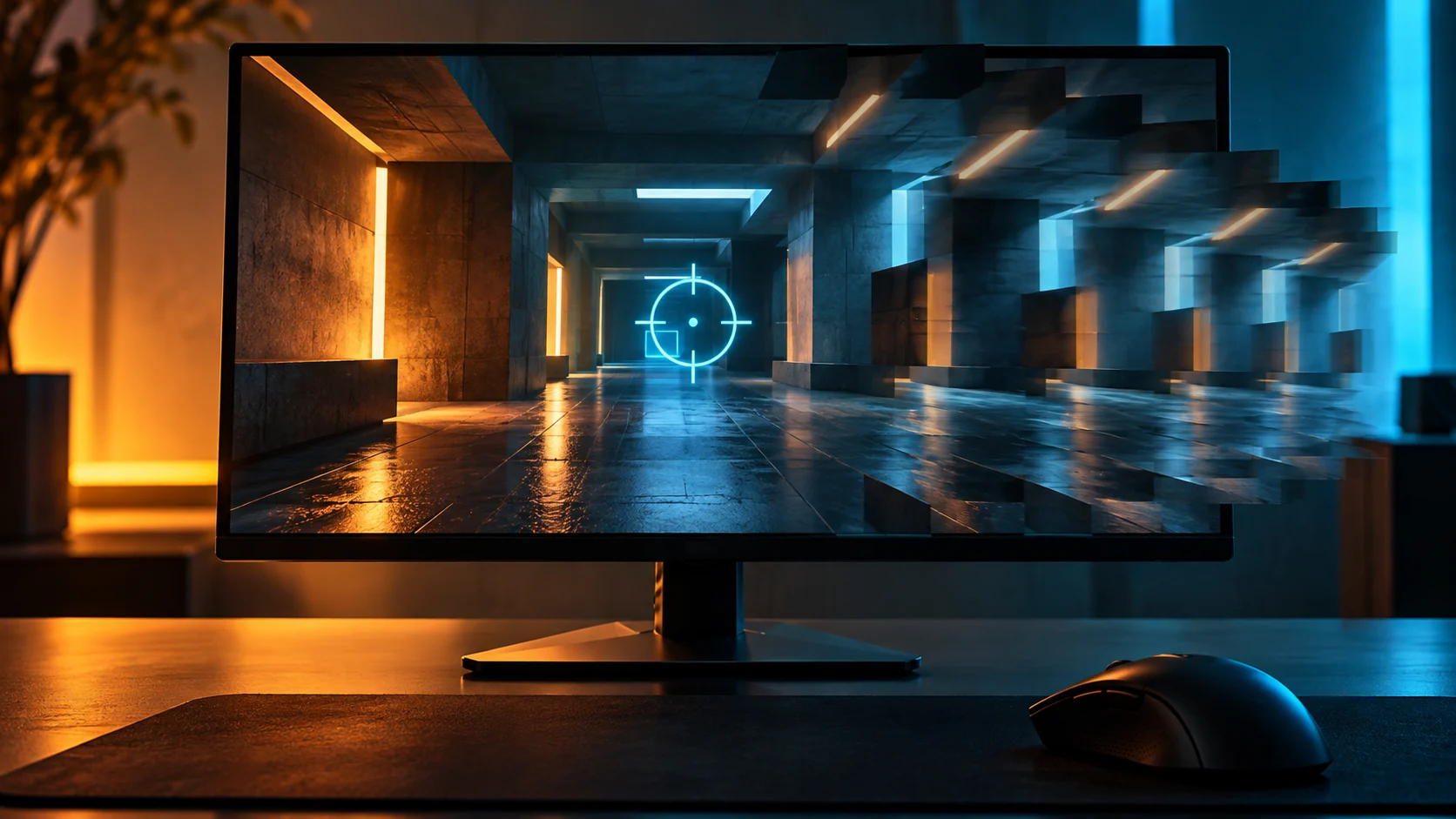
High average FPS can hide uneven frame delivery. Start by identifying when the hitch occurs, recording a repeatable scene and changing one setting at a time. Compare frame-time behavior alongside average FPS. If the problem only happens online, investigate network symptoms separately before changing your sensitivity.


Your FPS counter looks healthy, but a turn still catches halfway across the screen. Lowering sensitivity might make the movement less noticeable. It does not identify what interrupted it.
The useful question is more specific: what changes at the moment the hitch appears? A hitch during every mouse sweep needs a different investigation from one that happens only when entering a new area.
First, describe the symptom accurately
| What you notice | First comparison | What it can tell you |
|---|---|---|
| The entire scene briefly stops | Repeat the same route and inspect frame times | Whether frame delivery becomes uneven |
| Hitches mainly during mouse movement | Compare two supported polling rates | Whether the input configuration deserves further testing |
| Other players snap backward online | Compare offline play and available network statistics | Whether a network investigation is more appropriate |
| Motion looks consistently coarse | Confirm the active monitor refresh rate | Whether the display is running as configured |
| Input feels delayed without obvious freezes | Check supported latency measurements | Whether the issue differs from visible stuttering |
These are starting points, not diagnoses. Several causes can produce similar symptoms.
Why average FPS does not settle the question
For evenly spaced frames, the interval is 1,000 / FPS milliseconds. At 200 FPS, that is 5 ms per frame. A real session can contain many short intervals and occasional long ones while retaining a high average.
That calculation is a mathematical example, not a measurement of your PC. It also does not measure the time from a physical click to the visible response. NVIDIA separates local system latency into peripheral, PC and display components in its latency guide.
Use a frame-time graph when your game or capture tool provides one. A 1% low statistic adds context, but definitions differ between tools. Keep the capture method consistent rather than comparing unrelated screenshots.
Run one useful comparison
- Choose a controlled scene. Use a practice area, repeatable route or built-in benchmark. A random online match changes too many variables.
- Record the starting configuration. Include resolution, display mode, frame cap, synchronization settings, mouse polling rate and recording software.
- Let loading finish. Wait for any game-provided compilation or loading process to complete before collecting comparable runs.
- Capture a baseline. As a practical starting protocol, record three 60-second runs of the same activity. This is a suggested workflow, not a universal benchmark standard.
- Change one relevant setting. Select it from the symptom table. Avoid changing graphics, mouse settings and background applications together.
- Repeat, then restore the baseline. An A/B/A comparison helps reveal whether an apparent improvement was just normal variation.
Write down what happened even when nothing improved. Ruling out a change is useful information.
Pick a reversible next step
If the hitch is tied to mouse sweeps, follow the high polling rate troubleshooting guide. If it appears during heavy visual effects, compare one graphics option in that same scene. If it appears while recording, compare runs with and without recording, keeping everything else fixed.
Do not assume exclusive fullscreen always wins. Microsoft documents windowed-game optimizations for compatible DirectX 10 and 11 games on Windows 11. Test the supported presentation options on your setup rather than applying an old universal rule.
A frame cap is another experiment, not a guaranteed fix. Choose a rate the scene can sustain, record it and compare the result. Synchronization and latency behavior depend on the game and display configuration.
Keep a compact test log
| Run group | One change | Average FPS | Same-tool 1% low | When the hitch occurred |
|---|---|---|---|---|
| A | Original configuration | Your measurement | Your measurement | Your observation |
| B | One named setting | Your measurement | Your measurement | Your observation |
| A again | Original configuration restored | Your measurement | Your measurement | Your observation |
If B looks better once but not on repeat, mark the result inconclusive. Avoid registry packs, boot-timer changes or disabling security as a first troubleshooting step: those interventions make the comparison harder to interpret and can introduce other problems.
Struggling with Frametime Jitter & DPC Latency Spikes?
Master the 4-stage latency pipeline, Windows 11 flip-model presentation, and MSI hardware interrupt routing with our FPS & Input Lag Playbook, or book a private 1:1 remote calibration in our DCPROSENS 360° VIP Overhaul.
Frequently Asked Questions
Can high FPS still feel choppy?
Yes. An average does not describe every interval between frames. Confirm the display configuration and inspect repeatable frame-time behavior.
Does changing DPI fix stuttering?
Changing DPI changes input scaling. It is not a general repair for interrupted frame delivery. Keep DPI fixed while testing performance.
Does a better 1% low prove lower input lag?
No. A frame-rate statistic and an end-to-end latency measurement answer different questions.
🎯 Lock In Perfect 1:1 Aim & Pro Consistency
Tired of daily aim inconsistency? Calibrate your physical cm/360, scope matching, and sensor latency. Get the complete Precision Aim System (4-Part Technical Manifestos) today for only $9.00 USD!
Unlock Elite Precision ($9) ⚡Dalto Outlier
Creator, DCPROSENSDalto built DCPROSENS to help competitive FPS players convert sensitivity, calibrate DPI, and keep their aim consistent across games.
Related Guides & Articles
Disclosure: some links on this page are affiliate links. As an Amazon Associate, DCPROSENS earns from qualifying purchases at no extra cost to you.