What Is NZXT CAM? Monitoring Software Explained
TL;DR
NZXT CAM is a free PC monitoring and control app that tracks CPU/GPU temperatures, usage, clock speeds, and fan/pump speeds, with an optional in-game FPS and hardware overlay. Background monitoring has a light footprint for most users, but the in-game overlay specifically has been reported to cost frames in some competitive titles, so it's worth disabling it if you're chasing maximum FPS.
What CAM Monitors
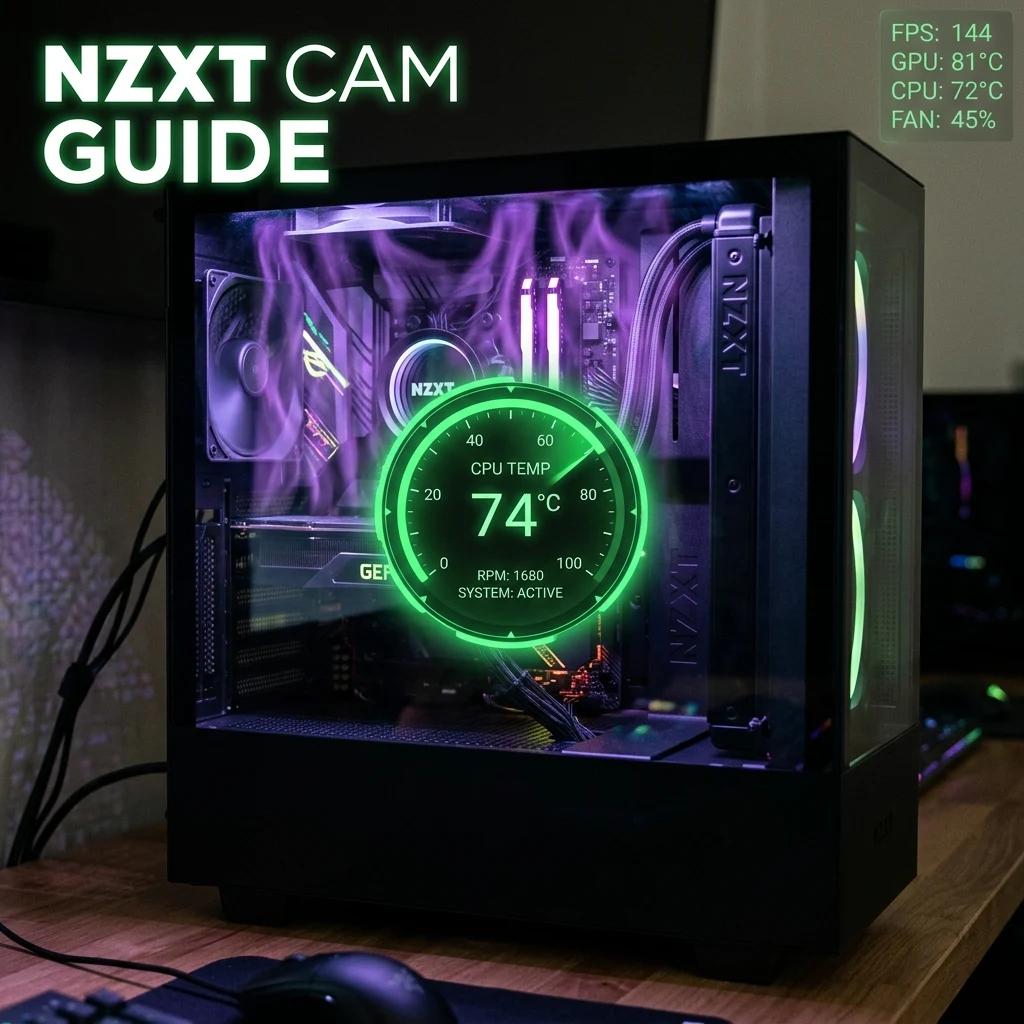
NZXT CAM is a free system monitoring and control application that tracks CPU and GPU temperatures, usage percentages, clock speeds, and — on NZXT hardware specifically — fan speeds, AIO liquid cooler pump speeds and coolant temperature, and case RGB lighting. Its core dashboard is useful even without any NZXT hardware installed, since the temperature and usage monitoring works with generic CPU and GPU sensors present on essentially any modern PC.
CAM sits in a similar category to other free system monitoring tools (HWiNFO, MSI Afterburner, and similar utilities), but distinguishes itself with a more consumer-friendly dashboard layout and tighter integration for anyone already running NZXT cases or coolers. If you don't own NZXT hardware, a lighter-weight dedicated monitoring tool may suit you just as well for pure temperature and usage tracking — CAM's main added value over those alternatives is the NZXT hardware control layer, not the monitoring dashboard itself.
Its most player-facing feature is a customizable in-game overlay, triggered by a hotkey, that displays real-time FPS, CPU/GPU usage, and temperatures directly on top of whatever game you're running — useful for spotting a thermal throttle or a CPU bottleneck mid-session without alt-tabbing out. If you suspect your hardware is capping your FPS below what your components should deliver, cross-check CAM's live readings against our FPS and bottleneck calculator to see whether the bottleneck is CPU-side, GPU-side, or neither.
Beyond raw monitoring, CAM's control side lets you build custom fan curves tied to specific temperature sensors — for example, ramping case fans more aggressively once GPU temperature crosses a threshold rather than relying on a fixed, always-on speed. This is where owning NZXT hardware specifically matters: monitoring is universal, but write-access control (actually changing fan or pump behavior, not just reading it) is limited to NZXT's own product lines, since it depends on proprietary firmware communication that third-party manufacturers don't expose to outside software.
Setting It Up
CAM installs as a standard Windows application and begins monitoring generic system sensors immediately after launch — no NZXT hardware is required for this base functionality. If you do own NZXT components (cases, AIO coolers, fans, or power supplies with monitoring support), CAM auto-detects them over USB and unlocks hardware-specific controls like custom fan curves, pump speed profiles, and per-zone RGB lighting that aren't available for third-party hardware. The in-game overlay is enabled from CAM's settings menu, where you also choose which stats appear and its hotkey and screen position.
Earlier versions of CAM required creating and signing into an NZXT account to unlock full functionality for controlling NZXT hardware like the Kraken AIO line, which drew criticism from users who just wanted local monitoring and control without a mandatory online account. More recent CAM releases removed the account-login requirement entirely, so current installs work fully offline for both generic monitoring and NZXT hardware control without signing in to anything.
Reading the Overlay Without Guessing at Thresholds
CAM's overlay shows raw numbers, but knowing what to actually do with them takes a bit more context. Sustained CPU temperatures in the 70s-80s°C (Celsius) under full gaming load are generally considered normal for most modern consumer CPUs with adequate cooling, while temperatures consistently pinned near a chip's rated thermal limit are a sign of inadequate cooling or a bad thermal paste application, not something to treat as normal background noise. GPU temperatures follow a similar pattern, with most modern gaming GPUs designed to run safely into the 70s-80s°C under load. If CAM shows usage percentages near 100% on one component while the other sits well below, that's the clearest sign of which component is limiting your frame rate, worth cross-referencing against expected performance for your specific hardware pairing.
Exact "safe" thresholds vary meaningfully by specific CPU and GPU model, so treat these as general orientation rather than a hard pass/fail line for your exact hardware — check your component manufacturer's own rated thermal limit if you want a precise number to compare CAM's live readings against. Tracking these numbers over a few sessions, rather than a single snapshot, gives a much more reliable picture than reacting to one unusually high reading during a particularly demanding scene.
Does It Impact Performance While Gaming
Background monitoring alone — the temperature and usage tracking running quietly without the in-game overlay active — has a light performance footprint for most modern systems and generally isn't the cause of noticeable FPS loss. The in-game overlay is the part worth being more careful with: it has been reported by users to cause measurable frame rate drops in some titles, particularly fast-paced competitive games where every frame counts, likely due to the overhead of rendering an additional real-time HUD layer on top of the game itself. If you're chasing maximum, consistent FPS in a competitive shooter, the practical move is to keep CAM's background monitoring running (for the thermal/usage data) but disable the in-game overlay specifically, checking stats between rounds instead of live during play.
Monitoring software doesn't affect your sensitivity or aim settings directly, but a hardware bottleneck it reveals — like a CPU-limited frame rate — absolutely can, since inconsistent frame delivery makes tracking and flicking feel less predictable. If CAM shows a bottleneck, pair the fix with a clean sensitivity setup once your frame rate stabilizes, and double-check your real DPI is accurate while you're tuning the rest of your setup.
If CAM's overlay reveals your CPU is pegged at high usage while GPU usage sits noticeably lower, that pattern typically points to a CPU-side bottleneck rather than a graphics-side one — worth knowing before spending on a GPU upgrade that a CPU limitation would prevent you from fully using anyway. Compare your specific readings against expected values for your hardware combination using the FPS calculator before making any purchasing decisions based on CAM's numbers alone.
For readers also configuring mouse or keyboard peripherals as part of the same setup, see our companion guides on Logitech G HUB and Wootility — background system monitoring, mouse configuration, and keyboard configuration are three separate software layers, and none of them substitute for the others.
Frequently Asked Questions
Frequently Asked Questions
Does NZXT CAM cause FPS drops?
Background system monitoring alone rarely causes noticeable FPS loss for most users, but the in-game overlay specifically has been reported to cost frames in some competitive titles due to the overhead of rendering a live HUD on top of the game. If you're chasing maximum FPS, disable the overlay and rely on background monitoring only.
Do I need NZXT hardware to use CAM?
No — CAM's core temperature and usage monitoring works with generic CPU and GPU sensors on essentially any PC. You only need actual NZXT hardware (cases, coolers, fans) to unlock hardware-specific controls like custom fan curves and RGB lighting management.
🎯 Lock In Perfect 1:1 Aim & Pro Consistency
Tired of daily aim inconsistency? Calibrate your physical cm/360, scope matching, and sensor latency. Get the complete Precision Aim System (4-Part Technical Manifestos) today for only $9.00 USD!
Unlock Elite Precision ($9) ⚡Dalto Outlier
Creator, DCPROSENSDalto built DCPROSENS to help competitive FPS players convert sensitivity, calibrate DPI, and keep their aim consistent across games.