Does Windows Mouse Speed Affect In-Game Sensitivity?
TL;DR
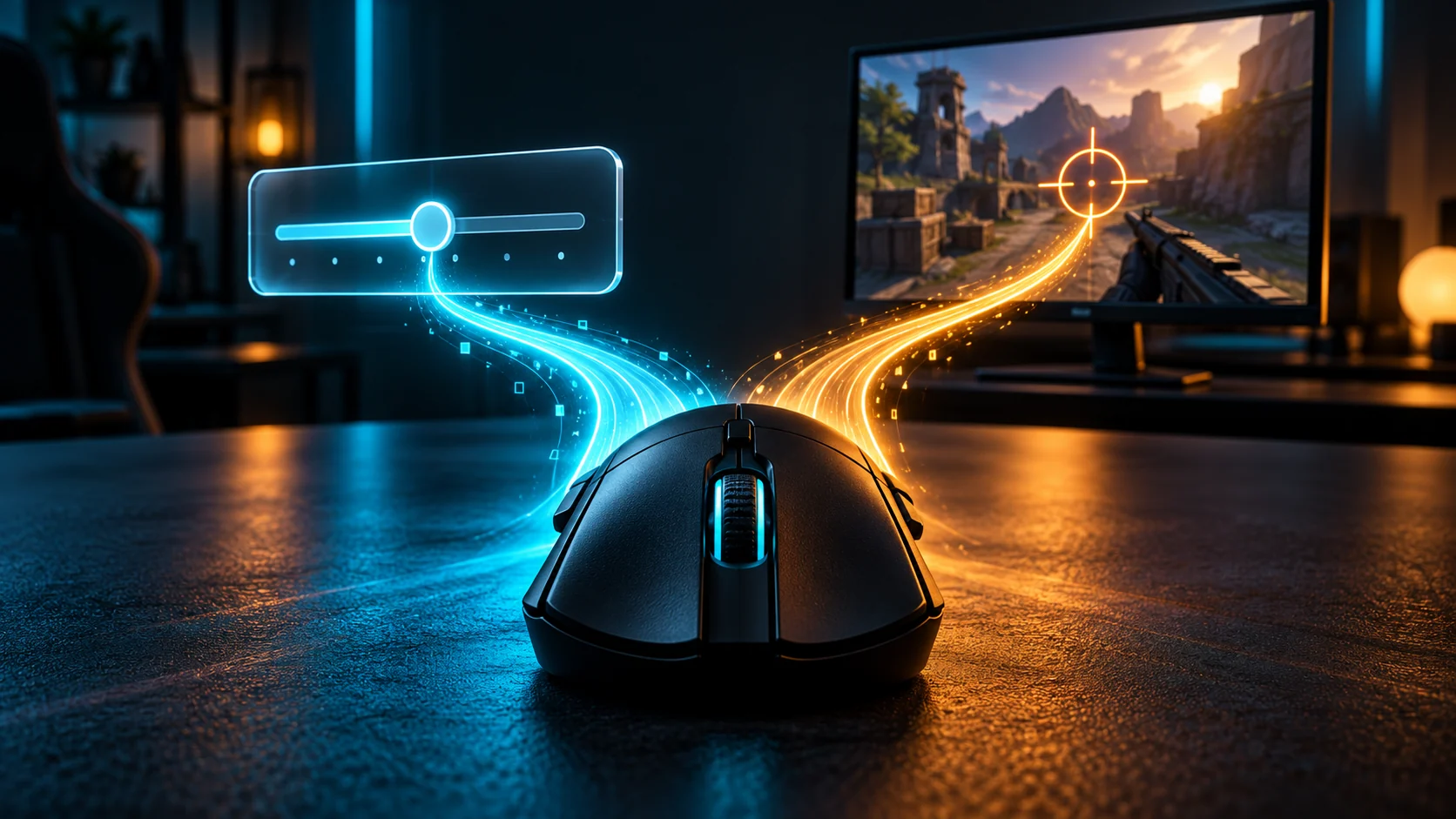
It depends on the game's input path. Relative raw mouse input is not processed through Windows' desktop pointer-speed settings, while cursor-based paths can behave differently. Verify the actual camera behavior in your game. A universal “Windows speed fixes every game” rule is unreliable.


A desktop cursor and a first-person camera do different jobs. That is why changing a Windows mouse setting can visibly change your desktop while leaving the game camera unchanged.
The useful question is not which setting a streamer copied. It is whether your game uses the setting you are about to adjust.
Raw input and cursor movement are different
Microsoft's RAWMOUSE documentation distinguishes relative raw movement from Windows pointer-speed processing. Its mouse movement guide also distinguishes raw input from pointer messages that apply desktop behavior.
A game can use different paths for menus and gameplay. Therefore, a menu cursor becoming faster does not prove the camera sensitivity changed.
Raw input is also not a blanket guarantee of zero processing anywhere. Device software, game-side scaling or an explicitly enabled acceleration system can still matter.
Test your game instead of assuming
Use this reversible comparison in a practice environment:
- Record the current Windows pointer speed and whether Enhance Pointer Precision is enabled.
- Record DPI, in-game sensitivity and any raw-input or acceleration option the game exposes.
- Face a fixed landmark and measure a repeatable horizontal turn.
- Change only Windows pointer speed, keeping the acceleration checkbox unchanged for this comparison.
- Return to the same scene and repeat the physical movement.
- Restore the original Windows setting when finished.
Repeat rather than judging one sweep. If the camera movement does not change while the desktop cursor does, that is consistent with the camera using a separate input path. It is not a code-level audit of the game's implementation.
If the turn changes, check the game's documentation and settings. Avoid immediately applying a second tweak; you now have a useful observation to investigate.
Test acceleration separately
If you want to investigate speed-dependent movement, compare the same physical distance at a slow and a faster movement speed under otherwise identical conditions. Keep the path straight and repeat several times.
Different turn results can have more than one explanation, including technique and measurement error. Use the observation to guide a controlled test of the supported acceleration options. Do not conclude that the mouse is defective from one inconsistent sweep.
Keep any intentional acceleration setup documented. A cm/360 value measured at one speed does not fully characterize a speed-dependent input model.
Common results and what they mean
| Observation | Useful interpretation |
|---|---|
| Desktop speed changes; camera turn does not | Camera and desktop likely use different scaling paths |
| Menu cursor changes; gameplay does not | Menu behavior alone is not a sensitivity test |
| Camera changes after relaunch only | Check saved settings and active profiles |
| Movement differs mainly at higher sweep speeds | Investigate acceleration and measurement consistency |
| The view freezes rather than turns farther | Investigate stuttering, not just input scaling |
What about browser aim trainers?
A browser tool introduces its own input environment. Fullscreen display and pointer lock are not the same feature, and neither should be assumed to reproduce a native game's complete configuration.
Keep browser state consistent during practice and verify any supported raw-input behavior. Use aim training with an in-game check so a higher browser score is not mistaken for a fully matched setup.
Do you need the famous middle pointer-speed setting?
A familiar baseline can be convenient for the desktop. It is not proof that every game's camera requires that position. Windows versions and interfaces can also present the controls differently.
Choose a comfortable desktop setting, record it and verify the game behavior that matters to you. Avoid registry packs claiming a universal sensitivity or latency cure.
Frequently Asked Questions
Should Enhance Pointer Precision always be off?
For a predictable non-accelerated cursor path, disabling pointer acceleration may be appropriate. For a camera using relative raw input, the Windows desktop setting is not applied in the same way. Test and document the relevant path.
Does raw input remove all input lag?
No. It describes how input is obtained, not the total time until the display responds.
Why did sensitivity change after installing mouse software?
Check active DPI stages and application profiles. A profile change can alter the input scale independently of Windows pointer speed. Once the input path is understood, use the <a href="https://dcprosens.com/">DCPROSENS converter</a> and verify the resulting physical turn in-game. Keep the original values so every change can be reversed. ---
Equipamentos de Elite Recomendados
Mouses ultra-leves topo de linha recomendados pelo Treinador Dalto para máxima precisão de sensor e consistência física no seu mousepad:
Logitech G Pro X Superlight 2
O mouse mais vencedor do cenário competitivo. Shape icônico, sensor HERO 2 e switches ópticos-mecânicos híbridos.
Razer Viper V3 Pro
Rastreador preciso com polling rate sem fio nativo de 8.000 Hz e formato simétrico ergonômico moderno.
Razer DeathAdder V3 Pro
Excelente para pegadas palm ou claw que querem apoio anatômico. Sensor Focus Pro 30K de última geração.
Lamzu Atlantis OG V2 / Thorn
Mouse boutique com peso irrisório e base vazada. Pegada traseira perfeita para controle agressivo de claw grip.
🎯 Lock In Perfect 1:1 Aim & Pro Consistency
Tired of daily aim inconsistency? Calibrate your physical cm/360, scope matching, and sensor latency. Get the complete Precision Aim System (4-Part Technical Manifestos) today for only $9.00 USD!
Unlock Elite Precision ($9) ⚡Dalto Outlier
Creator, DCPROSENSDalto built DCPROSENS to help competitive FPS players convert sensitivity, calibrate DPI, and keep their aim consistent across games.
Related Guides & Articles
Disclosure: some links on this page are affiliate links. As an Amazon Associate, DCPROSENS earns from qualifying purchases at no extra cost to you.